Time Entry Suggestions Settings
If you want better auto-tagging, start here
Rize uses AI to suggest clients, projects, and tasks for each time entry, but the best results come from a mix of settings, structure, rules, integrations, and daily review. This page explains how to make that system stronger.
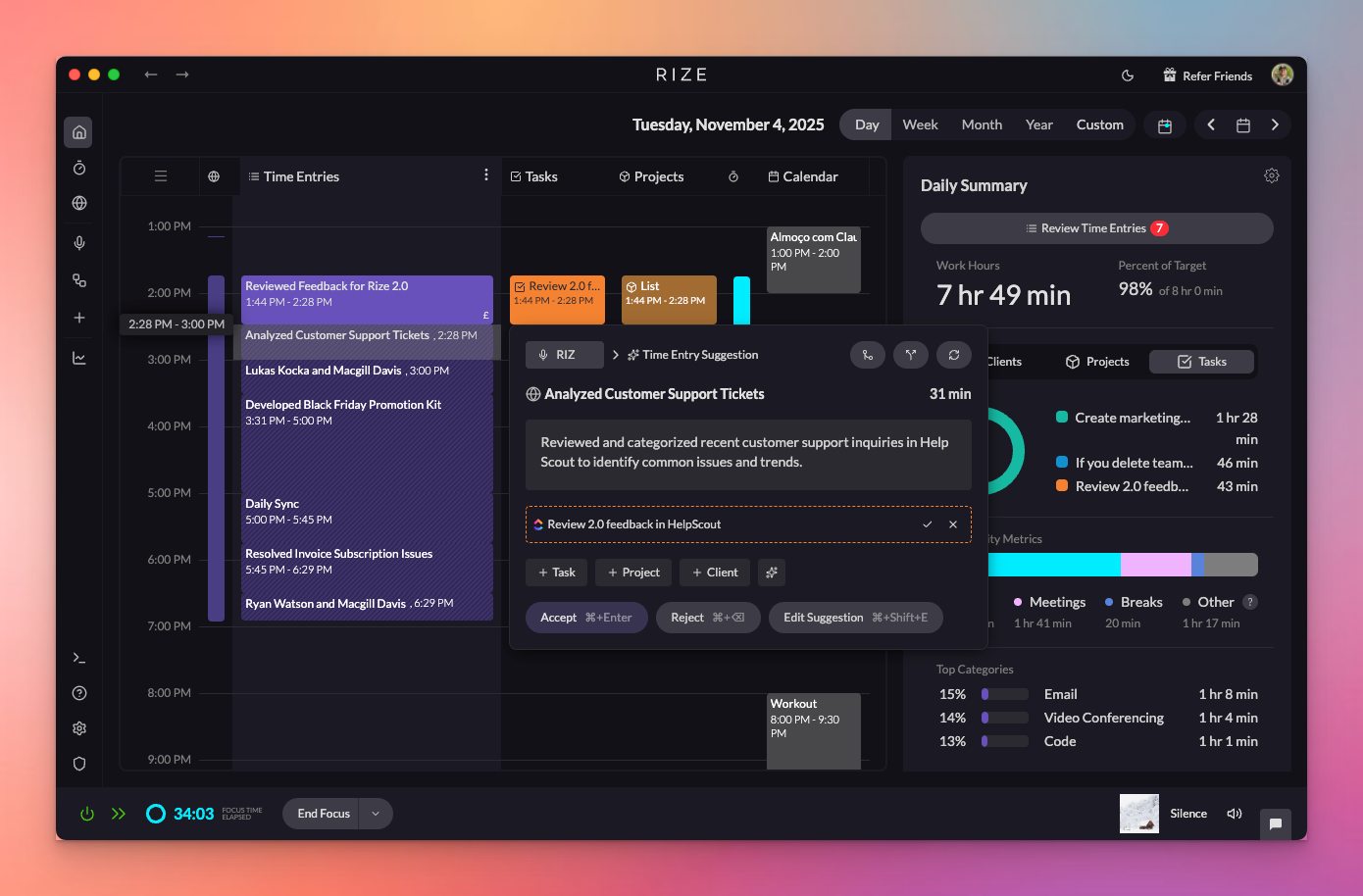
Video Walkthrough
How It Works
Rize's AI-powered time entry suggestion system works in four steps:
- Live Tracking: Rize tracks your in-focus window metadata (app name, window title, URL) — never the content — and creates live time entries as you work.
- Automatic Finalization: When you switch contexts, the live entry is finalized into a suggestion with an AI-generated description.
- Activity Grouping: The AI groups your activities into logical blocks based on context and timing.
- Smart Tagging: Each block is annotated with a title, description, and suggested Client/Project/Task using a combination of tag rules, keyword/embedding signals, calendar events, and external tasks.

Accessing Time Entry Settings
Navigate to Settings > Time Entries to access all customization options for time entry suggestions.
The biggest levers for better accuracy
Create the right structure first
If your clients, projects, and tasks are incomplete or inconsistent, the AI has fewer good choices. Accurate tagging starts with a clean workspace structure.
Sync your task tracker
ClickUp, Linear, and Asana give Rize much better task context than free-form typing alone, especially for team workflows.
Use confidence threshold intentionally
A lower threshold creates more automation but more risk. A higher threshold is safer but more conservative. Most teams should test a moderate threshold before going fully hands-off.
Review fast and often
The feedback loop matters. Suggestions improve faster when people review their inbox daily instead of waiting until the end of the week.
AI Time Entry Suggestions
Enable or disable AI-powered time entry suggestions. When enabled, Rize will automatically suggest time entries based on your activity. When disabled, Rize will only use auto-tracking keywords you've created.
Automatically Approve Suggestions
You can choose to automatically approve all AI-generated time entry suggestions. When enabled, suggestions will be automatically approved without requiring manual review.
Auto-Approve is useful for teams that want a hands-off approach to time tracking. Combine it with well-configured keywords and custom instructions for best results.
AI Confidence Score and Auto-Tagging
Rize can show a confidence score for suggested tags and automatically apply tags when the score meets your chosen threshold.
- Lower threshold: More automation, but higher risk of wrong tags.
- Higher threshold: Safer suggestions, but fewer entries arrive pre-tagged.
- Best practice: Start conservative, review results for a few days, then increase automation only when quality is stable.
If your team is still correcting a lot of suggestions, work on structure, rules, and integrations before pushing the threshold lower or enabling more aggressive automation.
Customization Controls
Custom Instructions
You can provide custom instructions to influence how Rize generates suggestions:
- Activity Summaries: Add instructions that affect the title of your time entry suggestions
- Task Suggestions: Customize how existing tasks are suggested for time entries
- Project Suggestions: Customize how existing projects are suggested for time entries
- Client Suggestions: Customize how existing clients are suggested for time entries
- New Task Suggestions: Control how new tasks are suggested for time entries
Suggestion Mode
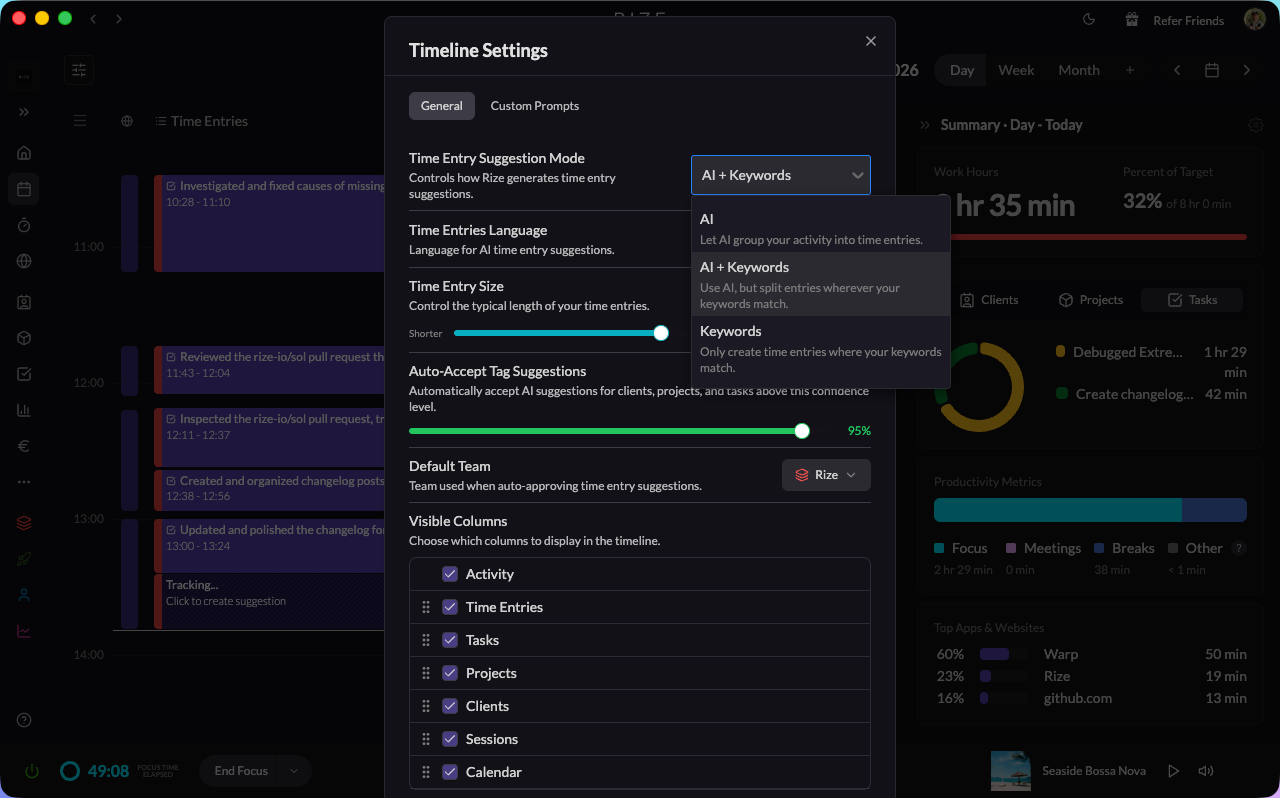
The Suggestion Mode dropdown in Settings → Time Entries lets you choose how Rize generates suggestions. Three options are available:
- AI: Fully AI-powered suggestion generation.
- AI + Keywords: AI suggestions enhanced with your keyword rules.
- Keywords only: Suggestions based entirely on your keyword and tracking rules, with no AI involvement.
Suggestion Preferences
- Time Entry Size: Use the slider to bias suggestions toward shorter or longer entries.
- Minimum Time Entry Minutes: Set the minimum amount of time required for a time entry to be created automatically.
- Time Entry Rounding: Enable rounding of time entries to the nearest 5 minutes.
Enable/Disable Specific Suggestions
You can control which types of suggestions are enabled:
- Task Suggestions: Enable or disable task suggestions for time entries
- Project Suggestions: Enable or disable project suggestions for time entries
- Client Suggestions: Enable or disable client suggestions for time entries
- Include Recently Closed Tasks: Include recently closed tasks in suggestions
Language Settings
Choose the language you want to use for Rize's AI time entry suggestions. This affects how suggestions are generated and displayed.
Default Workspace
Set your default workspace. This workspace will be used when auto-approving time entry suggestions.
Integration with ClickUp, Linear, and Asana
When you have ClickUp, Linear, or Asana connected, time entry suggestions will also match against your synced tasks:
- Synced tasks appear as suggestion candidates alongside Rize tasks
- The AI considers issue titles and descriptions when matching
- Time tracked against integrated tasks syncs back to the source tool
Learn more about integrations:
Recommended training loop
Review what Rize suggested
Open the Review Panel on your day calendar and look for mismatches in client, project, task, and title quality.
Fix the immediate mistake
Correct the tag, accept the entry, and note whether the problem came from missing structure, missing rules, or missing integration context.
Improve the underlying system
Add keywords, create a rule, connect a task tracker, or update custom instructions so the same error is less likely next time.
Increase automation gradually
Once the suggestions are reliably strong, adjust confidence thresholds and approval settings to reduce manual review time.
Benefits of Customization
- Accuracy: Fine-tune suggestions to match your specific workflow
- Efficiency: Reduce manual editing by improving suggestion quality
- Consistency: Ensure suggestions follow your preferred patterns
- Learning: The system learns from your customizations and improves over time
The more you customize and interact with the system, the better it becomes at understanding your work patterns. Add keywords to your Clients, Projects, and Tasks for the best results.