Reports
A recurring question, answered on a schedule
A report is a saved question about tracked time: whose data it covers, what period, which sections, and who gets it when it finishes. Rize runs it on your cadence and adds an AI read on top of the numbers.
Where reports live
Reports sit under Insights > Reports in the sidebar. The page has two halves: your saved reports, and Recent runs — every run that has finished, ordered newest first.
Your reports also appear as a rail in the sidebar so you can jump to a run without leaving the page you are on. A run opened that way can be popped out to its own full page with Open.
Create a report
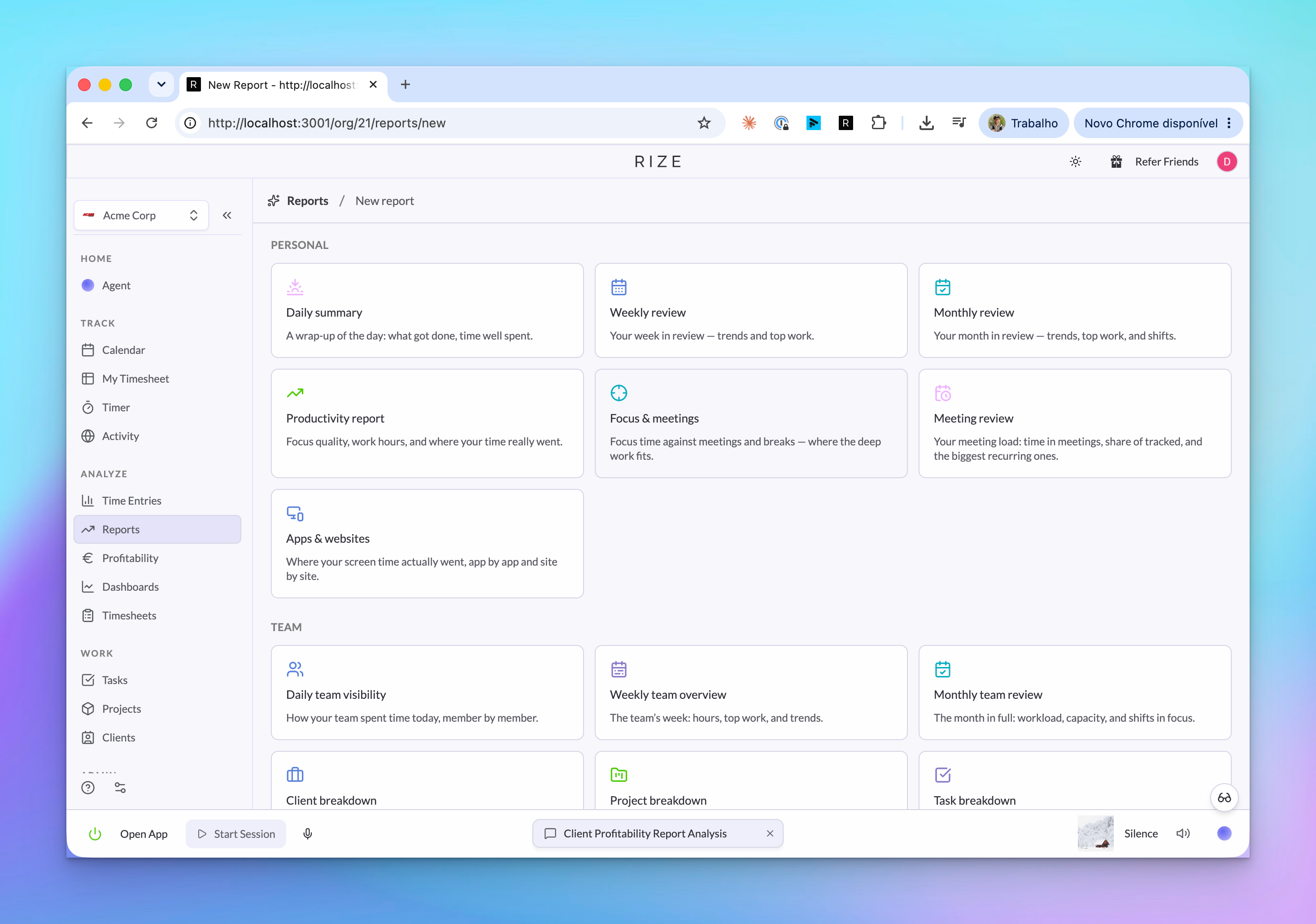
Pick a starting point
The gallery groups templates as Personal and Team, plus Start from scratch. A template prefills the sections, prompt, cadence, and send time — everything stays editable.
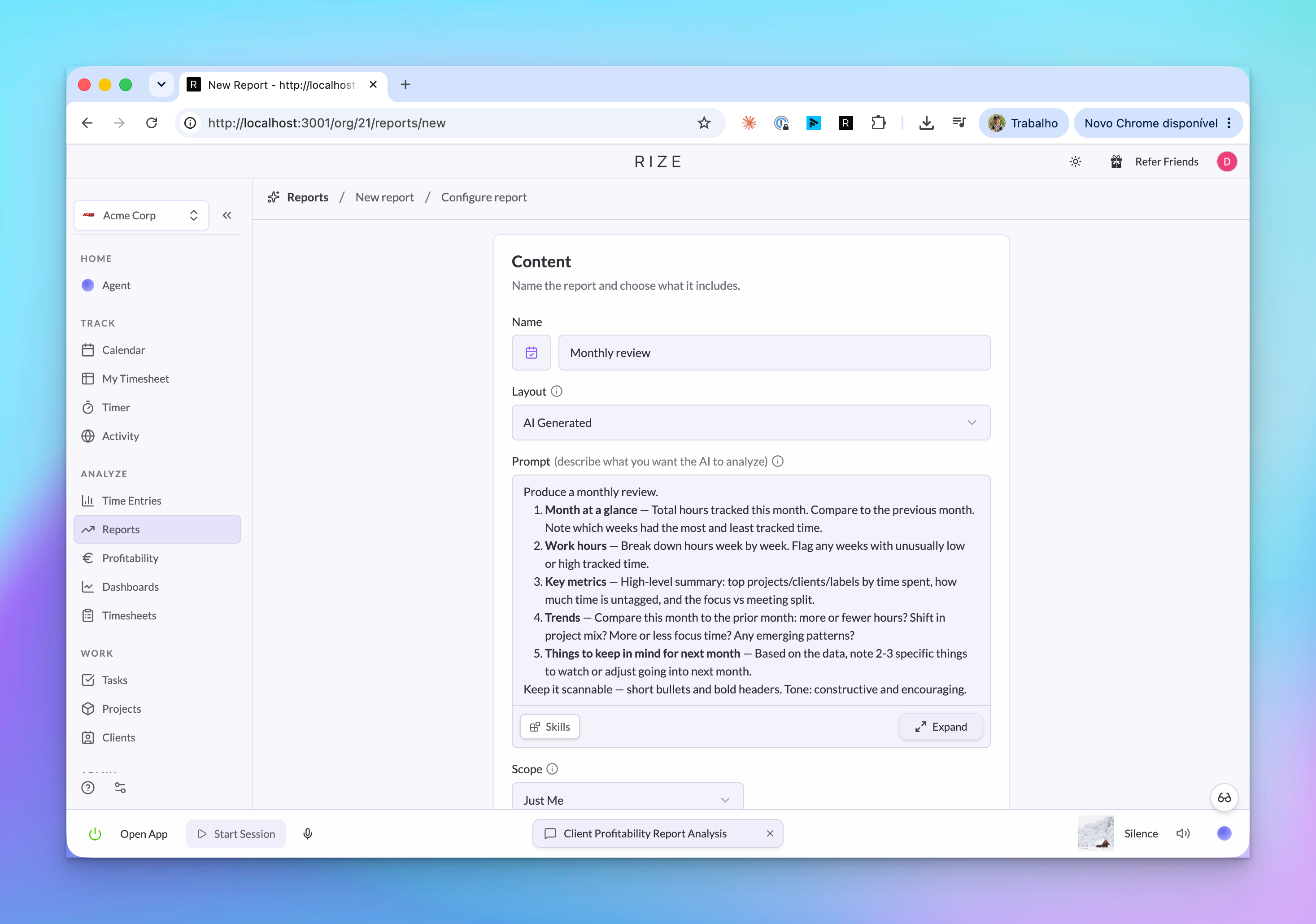
Choose the layout
Template builds the report from fixed sections you pick. AI Generated writes a free-form report from your prompt.
Set the scope
Just Me, Team, or Workspace. Scope decides whose data the report covers, and it is also what makes some sections available.
Set the schedule
On-demand, Daily, Weekly, or Monthly, plus the send time and the period each run covers.
Choose delivery
Email, Slack, in-app notification, or any combination. Email adds a recipients picker.
Template or AI Generated
The Layout field decides how a finished run is presented.
| Template | AI Generated | |
|---|---|---|
| What you configure | The sections to include | A plain-language prompt |
| What a run looks like | The sections you picked, rendered from live data, with an optional AI summary and analysis on top | A written report the AI composes from your data |
| Best for | Numbers you want in the same place every time | An open question, or a narrative for someone else to read |
| PDF export | Not available | Available once the run is ready |
Start with Template if you want consistency. AI Generated gives the model full latitude over the report's shape, which is exactly what you want for an open question and exactly what you do not want for a number a client sees every Friday.
A Template report can still be part AI: adding the Summary and AI Analysis sections puts a short overview and prompt-driven insight cards above the data.
Sections
Which sections you can pick depends on the report's scope:
| Section | Just Me | Team | Workspace |
|---|---|---|---|
| AI Summary | ✓ | ✓ | ✓ |
| AI Analysis | ✓ | ✓ | ✓ |
| Labels | ✓ | ✓ | ✓ |
| Clients | ✓ | ✓ | ✓ |
| Projects | ✓ | ✓ | ✓ |
| Tasks | ✓ | ✓ | ✓ |
| Work Hours | ✓ | ||
| Focus | ✓ | ||
| Apps & Websites | ✓ | ||
| Meetings | ✓ | ✓ | |
| Members | ✓ | ✓ | |
| Teams | ✓ | ||
| Client Profitability | ✓ |
Work Hours, Focus, and Apps & Websites cover personal activity, so they are offered on individual reports only. Changing scope drops any selected section the new scope does not support.
Sections render the same components as the Time Entries page, against the run's period and the report's filters. Editing a time entry after the fact updates what the report shows, which is usually what you want: the numbers stay current instead of freezing a typo in place.
Prompt
AI Generated layouts take a prompt instead of sections. Be specific about what to compare, highlight, or flag:
Compare my deep work this week vs last week, flag any project where meetings exceeded 2 hours.
Every template ships with a prompt you can read and edit. They are worth borrowing from: each one names the sections to cover, the order to cover them in, and the rule that every claim gets a number.
Saved Skills and Agent Context can shape a report too. Use a Skill when a report should follow a client policy, a team review format, or a billing rule that should not be retyped into every prompt.
Scope
| Scope | Covers | Default visibility |
|---|---|---|
| Just Me | Your own tracked time | Owner only |
| Team | One team's members | Team members |
| Workspace | Every team in the workspace | Workspace admins |
Scope is about ownership, not filtering. Clients, projects, tasks, and labels are filters you apply on top of a scope, not scopes of their own.
Schedule
Cadence is On-demand, Daily, Weekly, or Monthly.
- On-demand reports run when you click Run now. You pick the period directly: today so far, the last 1 to 30 days, or a custom date range.
- Daily runs cover today so far.
- Weekly runs cover the previous week. The window is configurable: full week (Mon-Sun), work week (Mon-Fri), Mon-Sat, or a custom start and end day.
- Monthly runs cover the previous calendar month. Choose the day of month to send on, including the last day.
Scheduled reports also have a Send at time, in the schedule's timezone.
A weekly report sent Friday afternoon reports on the week that just closed, not a partial one. The period is stored on the run when it is created, so re-opening an old run always shows the window it was built for.
Delivery and recipients
Pick any combination of Email, Slack, and Notification (in-app).
Choosing email adds a recipients picker. Who is available depends on scope: the creator, team admins, the whole team, workspace admins, or everyone in the workspace. You can also type individual email addresses, including people outside Rize.
Email links to the hosted run rather than attaching a file, so the recipient always opens the current version.
Reading a run
A run moves through pending, running, and then ready or failed. The reports rail badges a report New when it has an unread run and Failed when the last run errored.
Once a run is ready:
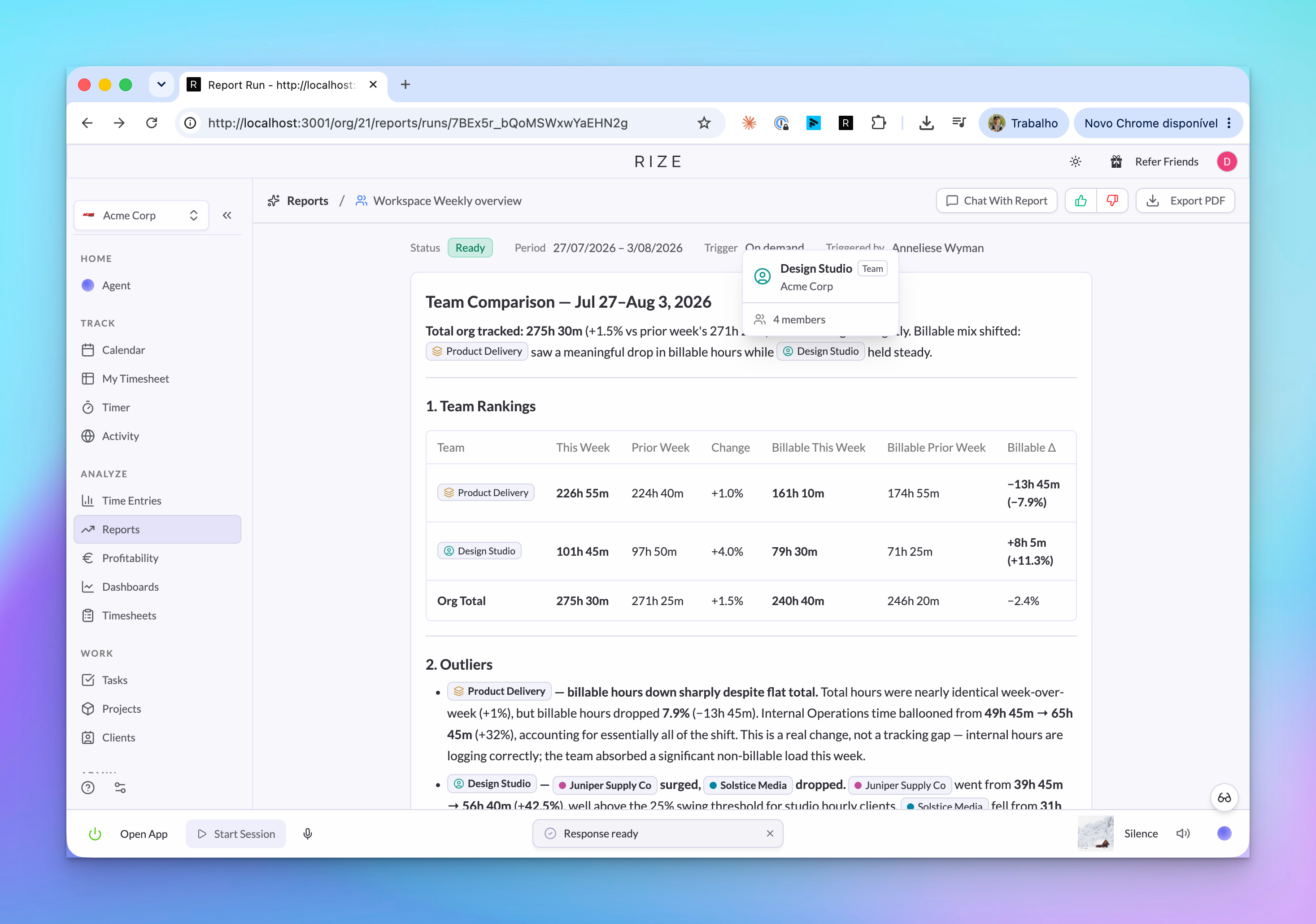
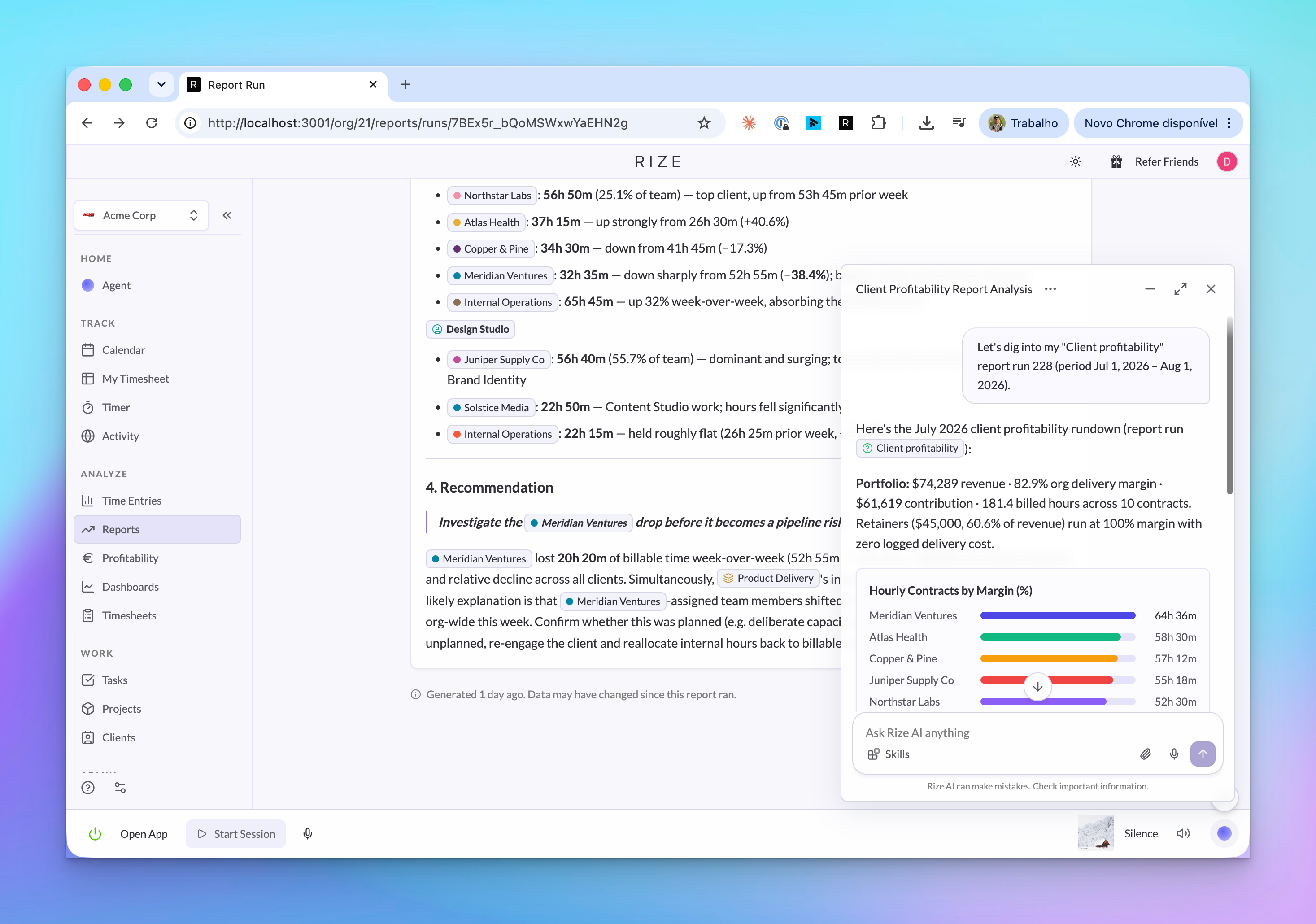
- Chat opens the agent with the run as context. Ask it to dig into a number, compare against the prior period, or explain an outlier. See Chat with the Agent.
- Export PDF is available on AI Generated runs once the analysis is finished.
- Thumbs up / thumbs down rates the run. A thumbs down takes optional free text, which is how the prompts get better.
- Send emails the run to specific addresses, one-off, without touching the report's recurring recipients.
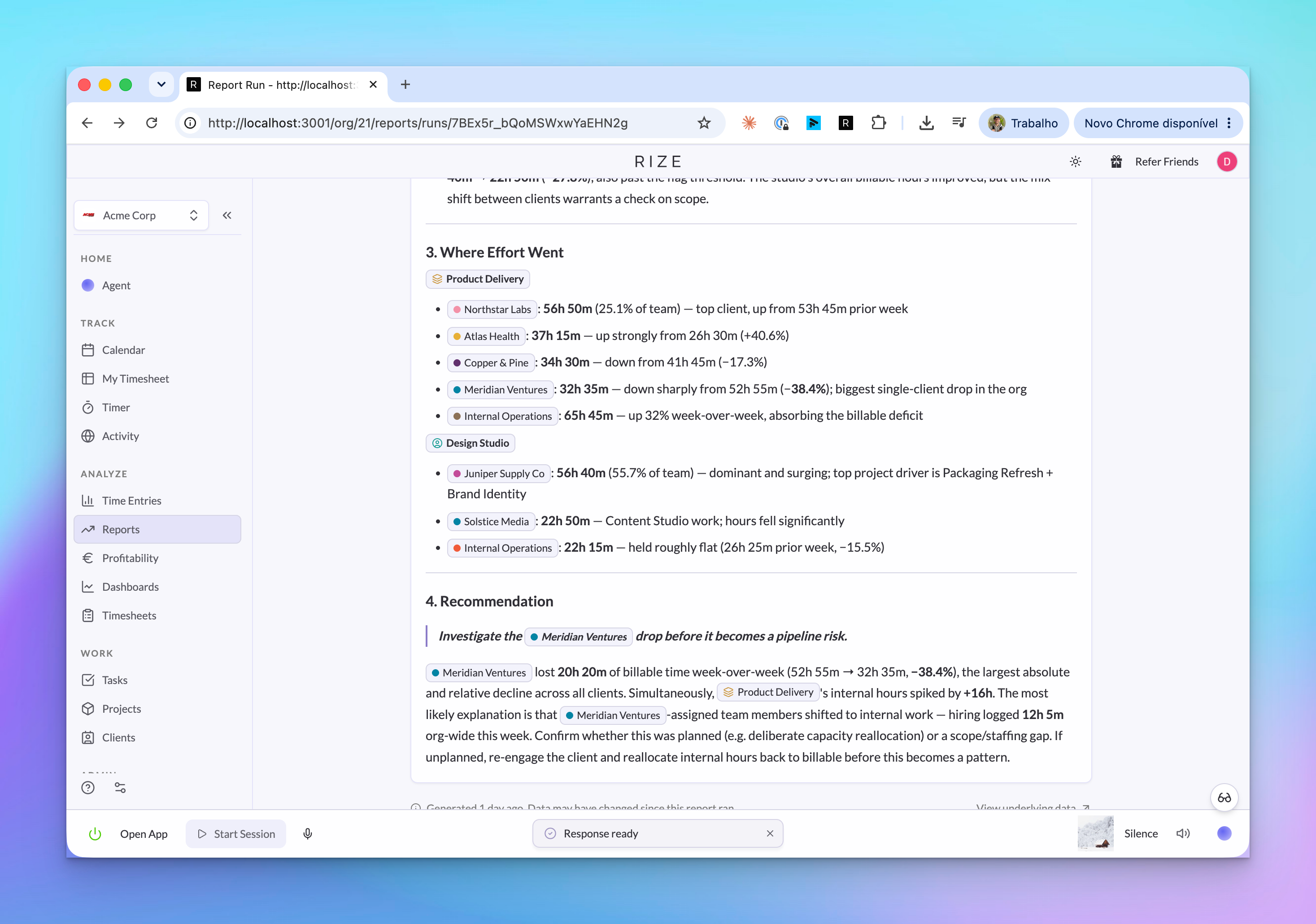
Names in a run are pills, the same as in chat: hover a project, client, or member to see details, click to open it.
Dig into a run
Chatting with a run is the fastest way to get past "what happened" to "why". The agent already has the run's period, scope, and filters, so follow-ups stay narrow:
- "Why were meeting hours up this week?"
- "Which entries drove the Acme number?"
- "Compare this to the same week last month."
Managing reports
Each report's menu offers Details, View runs, Open last run, Run now, Edit, and Delete.
Editing a report changes future runs. Past runs keep the AI analysis they were generated with.