Tracked Time and Dashboards
Build the view once, keep it forever
Tracked Time is the page for answering where time went. Pick the rows, pick the columns, add a filter, and read the answer. When a view is one you check every week, save it as a dashboard: it keeps its layout and rolls its date range forward, sits in your sidebar, and becomes something the AI can analyze and the MCP can read.
Tracked Time
Open Tracked Time under Analyze in the sidebar. The page title is a switcher: click it to jump to any saved dashboard or to create a new one.
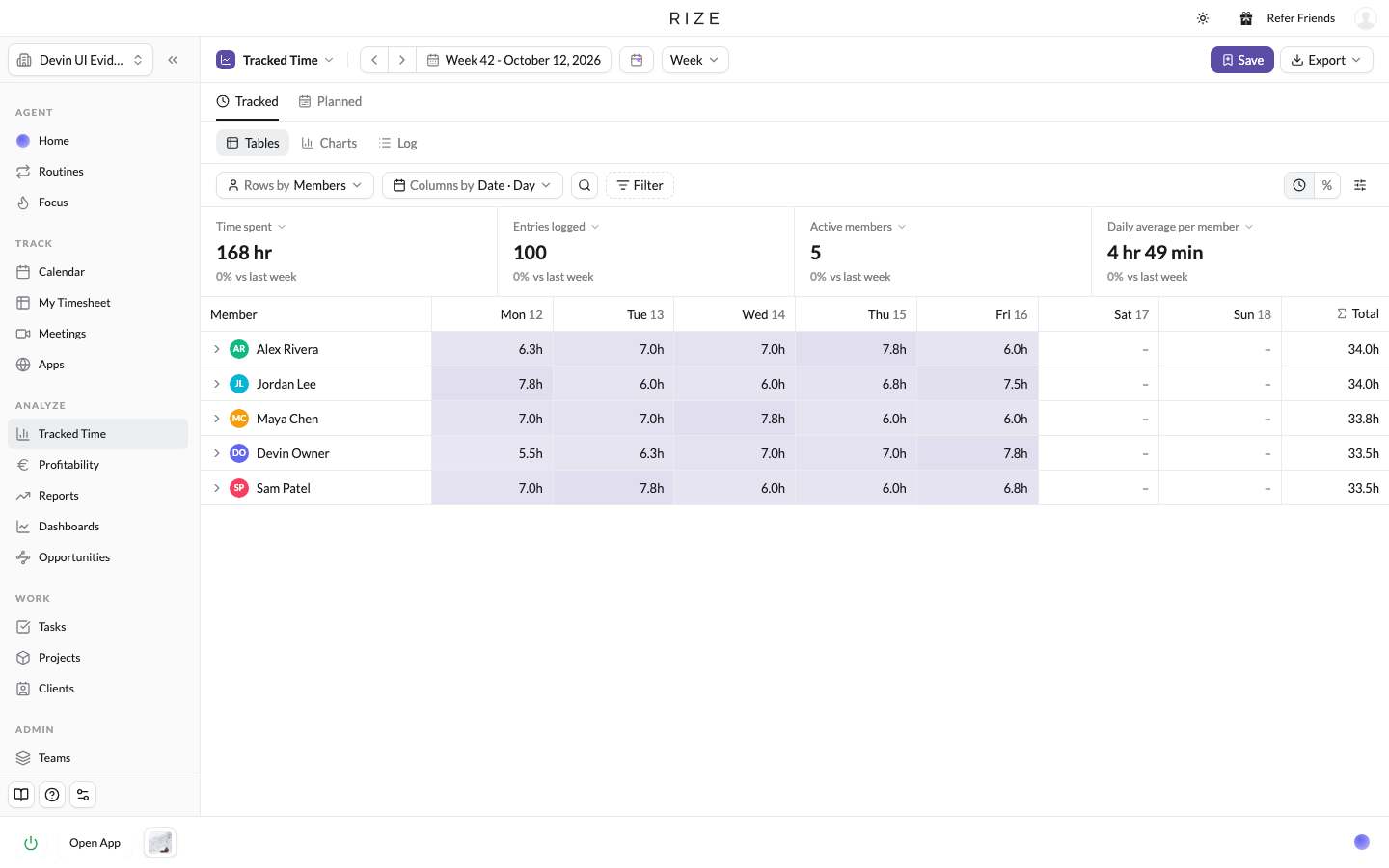
Rows, columns, and the date unit
The two controls above the table decide its shape.
| Control | Options |
|---|---|
| Rows by | Date, Teams, Members, Clients, Projects, Tasks, Labels, Titles, Departments |
| Columns by | The same list, plus None |
When Date is one of them, pick Day, Week, or Month. The defaults are members down the side and days across the top. The date range and its navigation sit in the page header, the same as every other Analyze page.
Three views
- Tables is the grid. A toggle switches the cells between total time and percent of the row total.
- Charts draws the same data as a bar or pie chart. The controls become Group by and Stacked by; a pie has no second control.
- Log lists the underlying time entries with a column picker and a search box. Add time entry creates one for any member you can log time for, and each row's menu offers Edit and Delete when you have permission for that entry.
A Tracked / Planned switch above the views shows planned hours from Resourcing beside tracked hours, when your workspace uses Resourcing.
Filters
Filter by Team, Client, Project, Task, Member, or Label. More filters add Title, Department, and Billable. The More options menu has Hide members with no time and Only show approved time.
Summary tiles
Four tiles above the table show Time spent, Entries logged, Active members, and Daily average per member. Each can be switched to another metric, including billable and non-billable time, and each shows the change against the previous period: vs yesterday, vs last week, vs last month, vs last year, or vs previous period for a custom range. A period that is only partly over is compared with the same share of the previous one, so half a month is compared with the first half of last month, not the whole of it.
Export
Export offers CSV and PDF. Both respect the rows, columns, filters, and range on screen. You name the file, and a large export is emailed to you when it is ready instead of downloaded.
Save a view as a dashboard
Build the view
Set the rows, columns, filters, and range you want to come back to. Clients by week, filtered to one team, is a common one.
Click Save
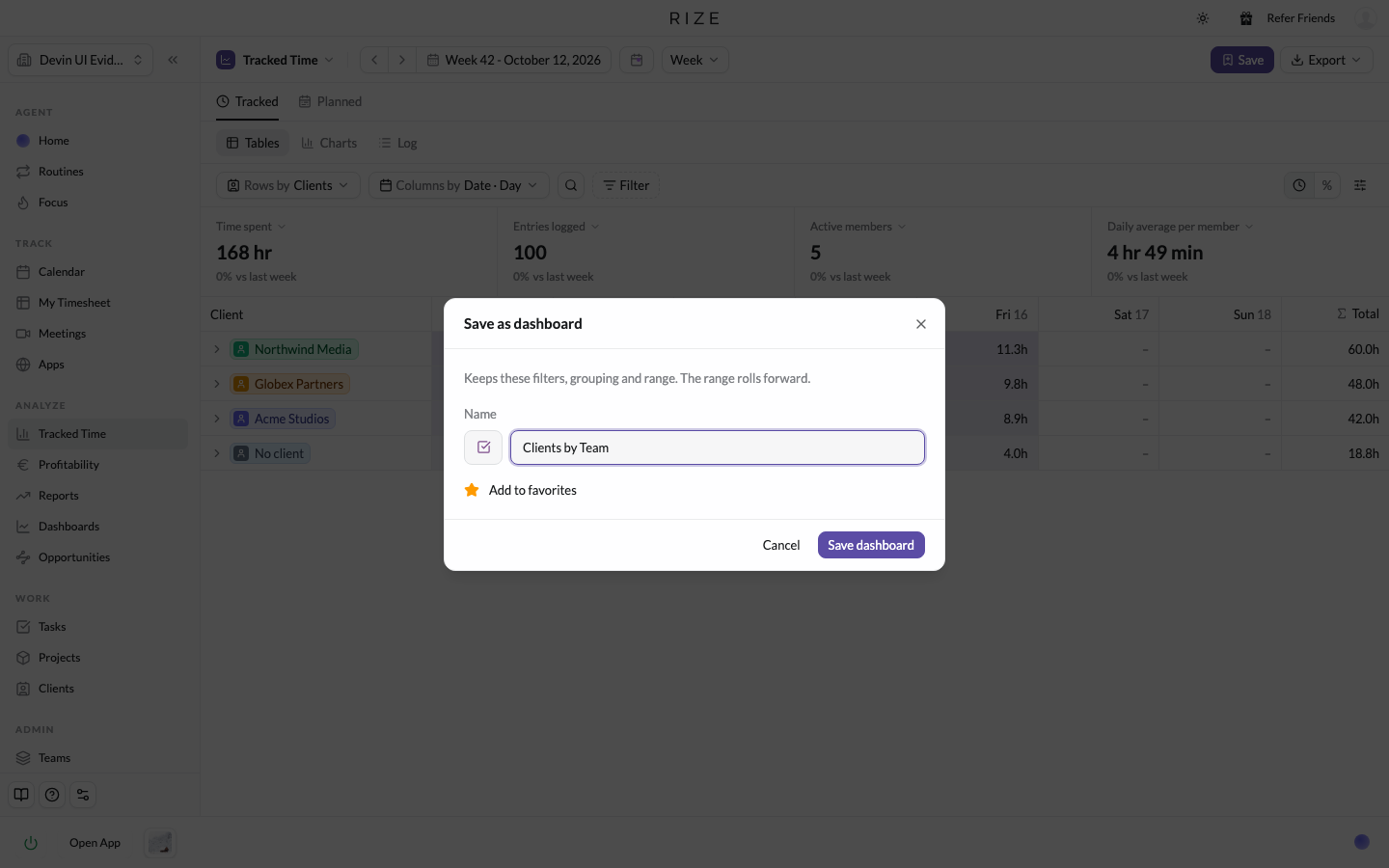
The Save button in the header opens the Save as dashboard dialog. Name it, pick an icon and color, and leave Add to favorites on if you want it in the sidebar.
Open it from the sidebar
Favorites sit under Dashboards in the sidebar, the first five directly and the rest behind +N more. The dashboard keeps its filters and grouping, and its range rolls forward, so a view saved on this week opens on the current week every time.
When you change a saved dashboard, an Unsaved changes strip appears with Update, for the owner, and Save as new.
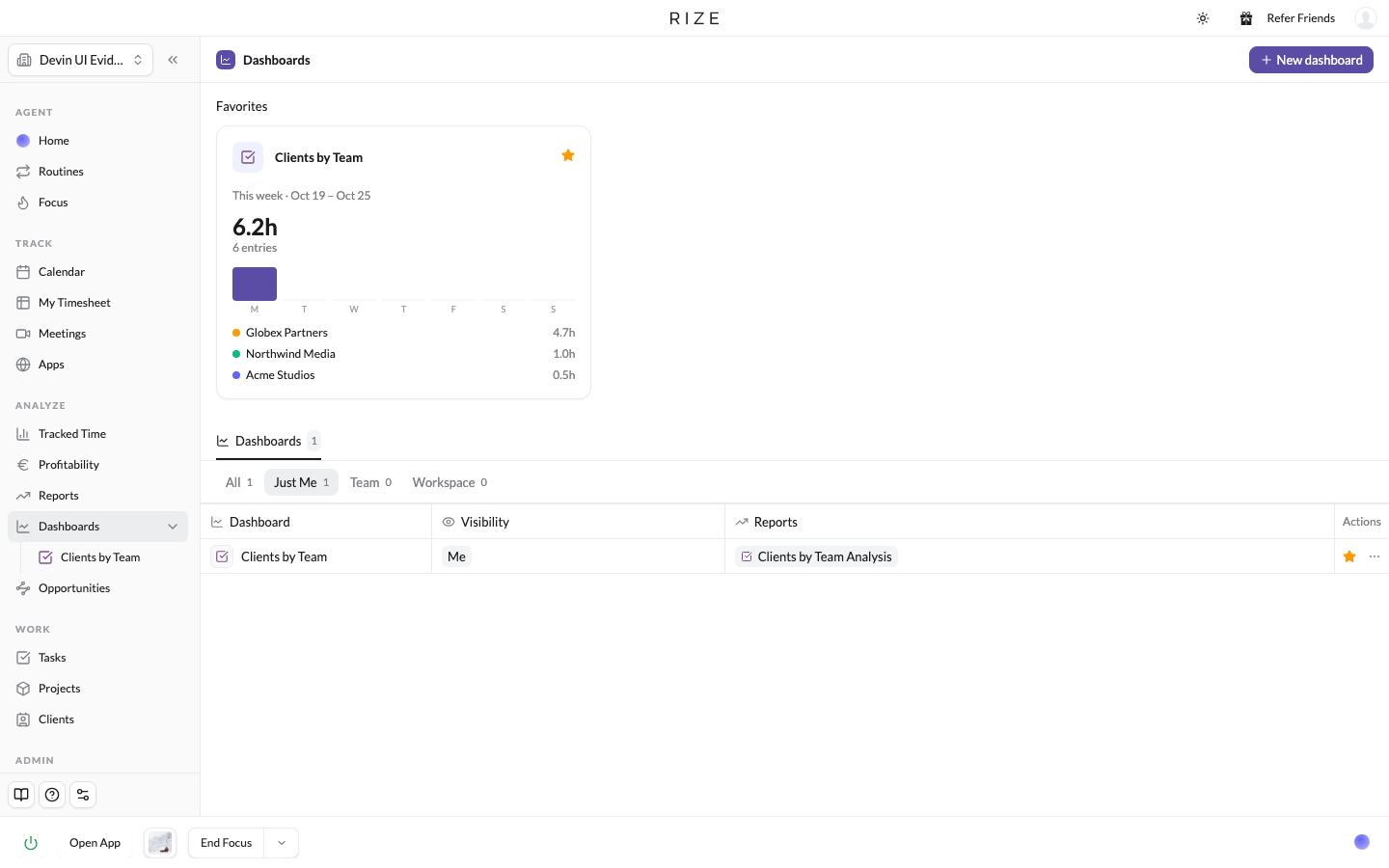
The Dashboards page
Dashboards under Analyze lists every dashboard you can see. Favorites are cards at the top, each a live preview with the daily bars for the window. Below them, the table has All, Just Me, Team, and Workspace tabs. The star on any dashboard adds it to or removes it from your favorites.
New dashboard offers two ways to start. Tracked Time view opens Tracked Time so you can build and save a view. Describe it, coming soon, will build the view from a sentence. Below that are templates, each named for the question it answers. Timesheets is available now and needs a team where you can view everyone's time. Task Velocity, Capacity, Project Health, Client Health, Billable Time, Label Analysis, and Personal Productivity are coming soon.
Who can see a dashboard
A dashboard is private when it is saved. Its owner, and only its owner, changes that from the Who can see this dashboard chip in the strip under the title, or from the Visible to field in the edit dialog.
| Visibility | Who can see it |
|---|---|
| Me | Only you |
| Team | The admins of the team you pick, plus workspace admins |
| Workspace | Workspace admins |
Members never see a dashboard they did not create. Sharing is about who can open the saved view, not about the data in it: whoever opens it sees the time they are allowed to see.
Reports and chat on a dashboard
The strip under the title also holds the linked reports. Create Report starts a report that runs on exactly this dashboard, on a schedule; once one exists, the chip lists the linked reports with Run now and their recent runs appear beside it. See Reports.
Chat in the title row opens the agent with the dashboard, its range, and its filters already in context, so "what changed this week" means this view. You can also type @ in any chat and mention the dashboard by name.
Deleting a dashboard that has linked reports keeps the reports: they are unlinked and keep the dashboard's filters as their own.
API and MCP
Every dashboard is readable through the Rize MCP server, and MCP clients can create and edit dashboards as well. A dashboard is the cheapest way to hand an external assistant a view your team already agrees on, instead of having it rebuild the query from raw time entries.