Chat with the Agent
Ask questions about your own tracked time
The Agent reads your Rize data: time entries, projects, clients, tasks, labels, teams, reports, routines, and Skills. It is the same toolset the Rize MCP server exposes to Claude and ChatGPT, except it already knows who you are, so there is nothing to connect.
Open the agent
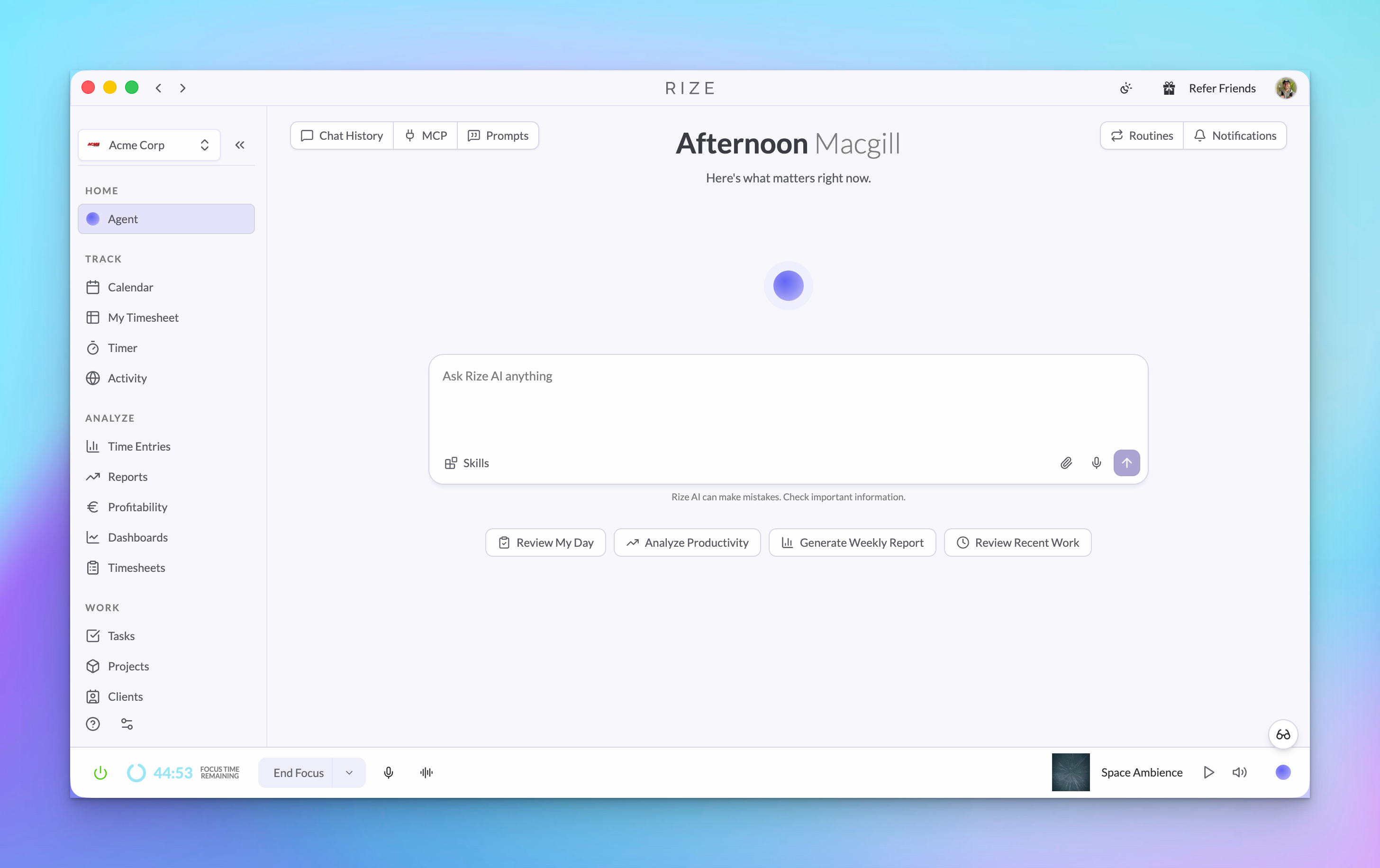
The agent lives at the top of the sidebar under Home > Agent. From anywhere in the app, Cmd+J (Ctrl+J on Windows) opens a new chat directly.
The panel opens beside your current screen, so you can keep a report or your timesheet visible while you ask about it.
Start with a prompt
A new chat offers presets. Each one sends a short question and quietly attaches a fuller recipe behind the scenes, so the conversation stays readable:
| Skill | What it asks for |
|---|---|
| Review My Day | A summary of everything you worked on today |
| Analyze Productivity | Your productivity patterns over the past week |
| Generate Weekly Report | A weekly report of your time and activity |
| Review Recent Work | A pass over your recent activity and time entries |
You are not limited to these. Anything you would ask a teammate about your week works: "How much did I bill to Acme last month?", "What did I spend Tuesday afternoon on?", "Which project ate the most meeting time this week?"
Your own saved Skills
The Skills button in the composer lists skills saved to your account, so a recipe your team already trusts gets reused instead of retyped. Selecting one drops a reference to it into your message.
The list shows up to five, ordered team Skills first, then workspace, then personal. Create and manage them in Settings > Agent, where a Skill is a name, an icon, a prompt, and a visibility: personal, team, or workspace.
The same skills are readable from the MCP server, so a recipe you wrote once is available to Claude or ChatGPT as well as to the in-app agent.
Answers link back to your data
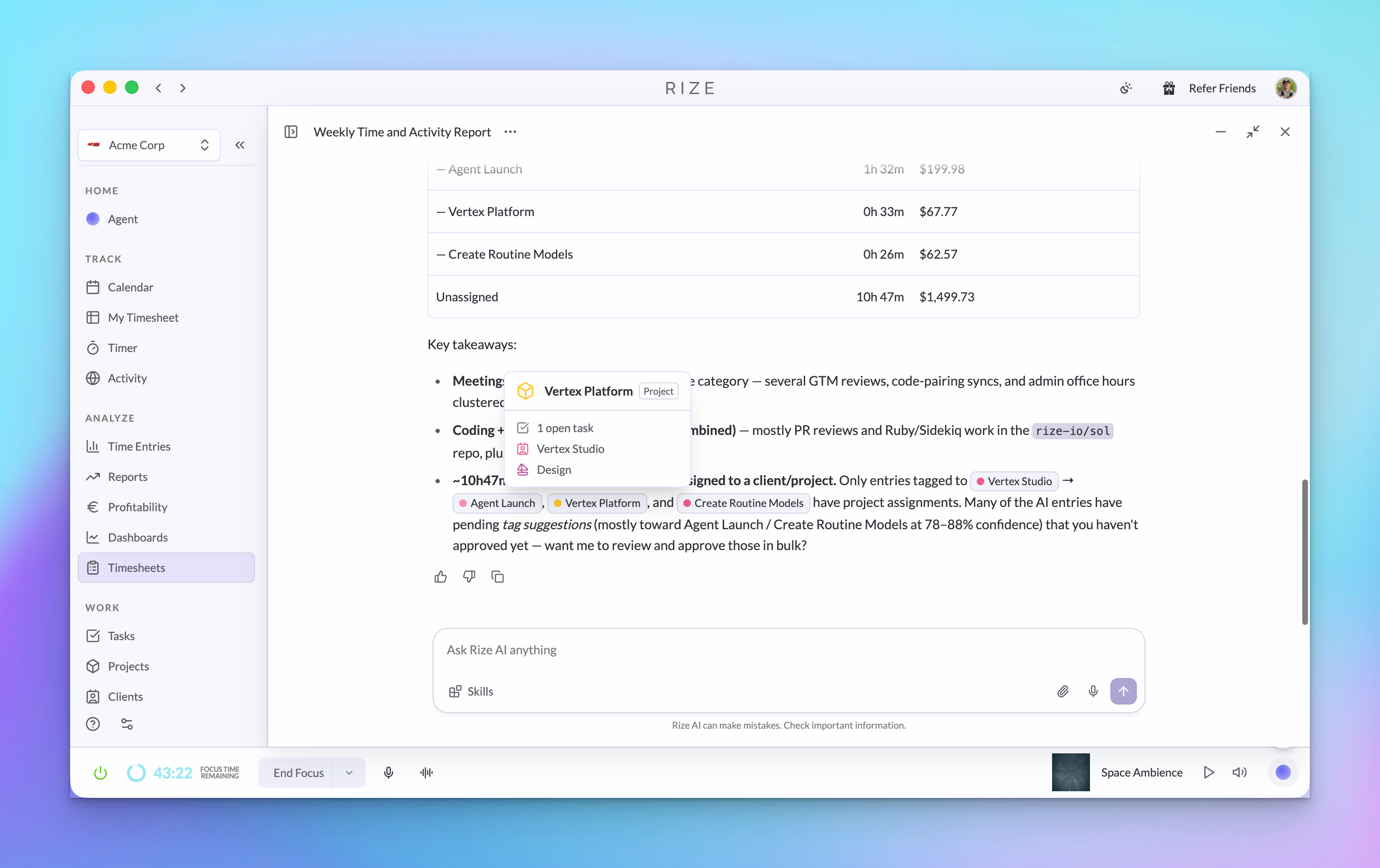
When the agent mentions a team, member, project, client, task, label, time entry, report run, or skill, it renders as a pill rather than plain text. Hover a pill to see details; click through to open the record.
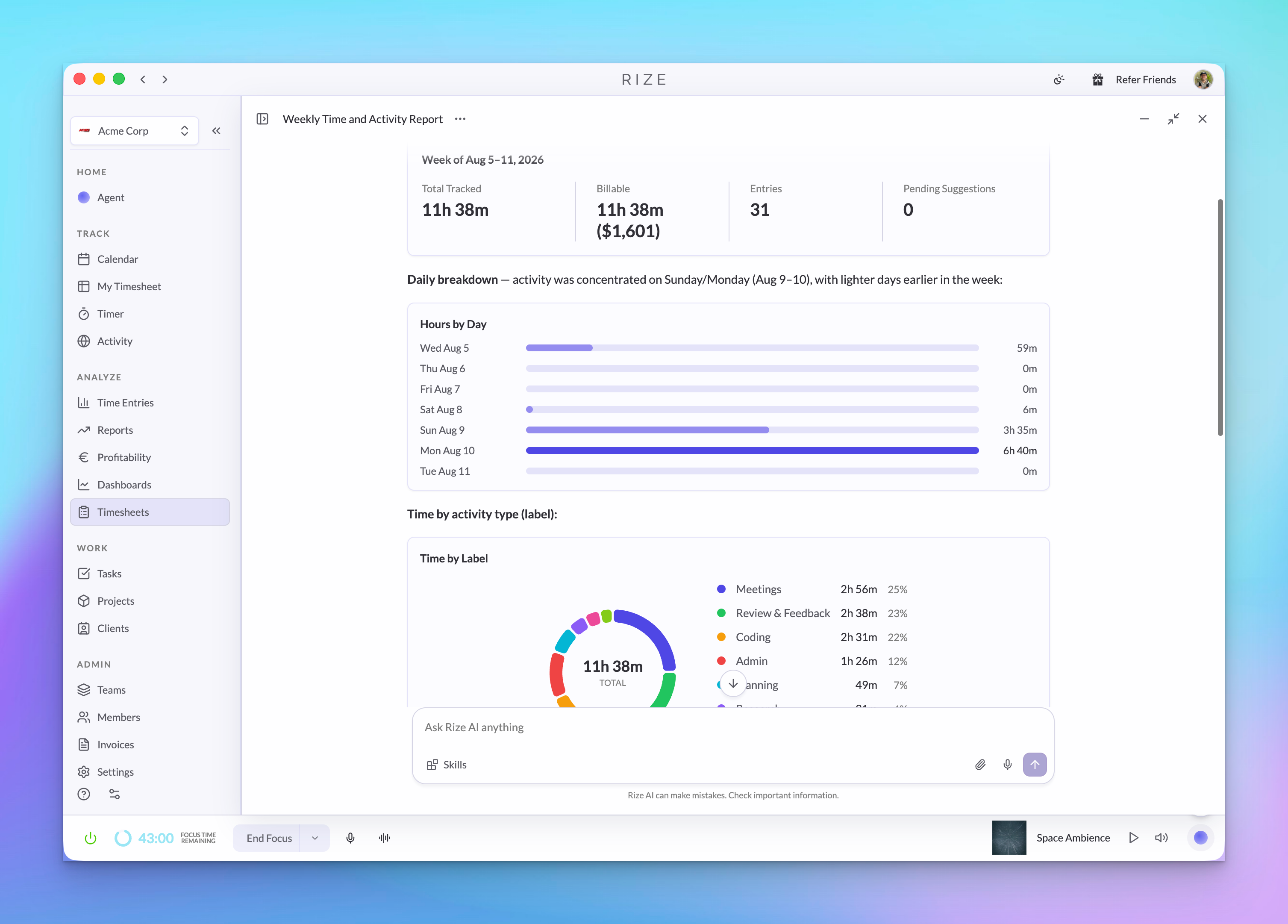
This is what makes a chat answer checkable. Ask "What are my time entries today?" and the breakdown shows the actual project attached to each block, so you can see immediately whether a stretch of time landed on the wrong client.
Anything the agent references that you are not permitted to see stays as plain text. Pills resolve only against records your account can already open.
Chat history
Every conversation is saved. Use the history list in the panel to reopen a past chat, or start a clean one with the New Chat button.
- History shows chats you started. Conversations generated by a report run or a scheduled routine are kept out of the list so it stays readable.
- Chats are titled automatically from your first message.
- Reopening a chat restores the full thread, including any files you attached.
Attachments and dictation
Attach files
Drag a file onto the composer, paste it, or use the attach button. Up to 4 files per message — images, PDFs, and text files — capped at 25 MB total for one message. Images are converted before upload, so screenshots paste cleanly.
Dictate
Use the microphone button to speak your question instead of typing it. The transcript appends to whatever is already in the composer, so you can start typing and finish out loud.
Minimize and keep working
Minimizing docks the chat at the edge of the screen and keeps the conversation alive. Switch pages, check a number, then reopen and continue where you left off.
Chat that starts from something else
Some conversations begin attached to an object rather than a blank page. Opening a chat from a report run, a routine brief, a team, or a team member carries that context in, and a chip at the top of the thread shows what it was started from.
The most common one is Chat on a finished report run, covered in Reports. Routine briefs work the same way: open the run, then ask a follow-up from the brief's context.
Tips
- Name the period. "This week", "last month", and "yesterday" all resolve against your own timezone.
- Name entities. Referring to a client or project by name is faster and more precise than describing it.
- Ask follow-ups. The agent keeps the thread's context, so "now break that down by label" works without restating the question.
- Use it to fix data, not just read it. The agent can create and update entries, approve or reject pending suggestions, and retag work.
Reports
Turn a recurring question into a scheduled report that runs on its own.
Routines
Schedule the Agent to produce recurring briefs.
Skills and Agent Context
Save reusable instructions and standing guidance for the Agent.
Rize MCP server
Connect Claude, ChatGPT, or any MCP client to the same data and tools.