Timesheets
Review time without asking anyone to submit it
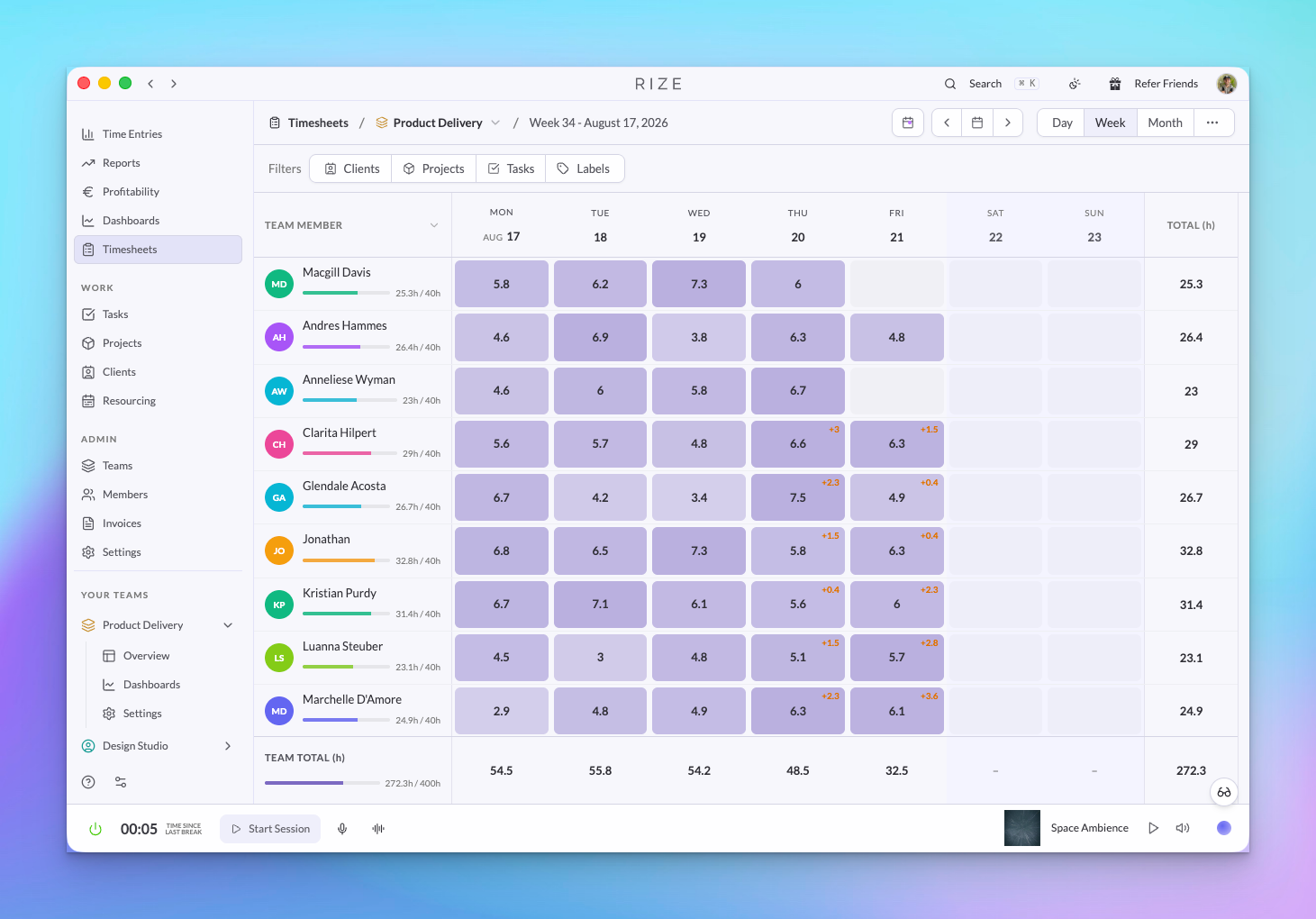
Rize captures time automatically, so a timesheet in Rize is a review surface rather than a form. My Timesheet is where each person confirms their own week. Team Timesheets is where admins, managers, and viewers scan a whole team's daily hours, pending time, and capacity.
My Timesheet
My Timesheet lives under Track in the sidebar. It shows your week as a grid of days with the hours Rize tracked, the entries still pending review, and the totals by client, project, task, or label depending on the grouping you choose.
Use it at the end of the day or week to confirm that pending suggestions landed on the right work. Click a day to open the entries behind it, approve or edit them, and move on.
Team Timesheets
Timesheets under your organization shows every member on a team in one grid. Each row is a member, each column a day, and each cell the tracked hours with a marker when time is still pending review.
- Totals per member and per day, for the selected period.
- Pending time highlighted so a manager can see whose week still needs a review.
- Capacity signals per member from the resourcing plan, so over- and under-allocated weeks stand out.
- Filters for clients, projects, tasks, and labels to answer questions like "how much did this team spend on Acme this week?"
- Drill in to any cell to open that member's entries for the day.
Organization admins see every team. Team admins, managers, and viewers see the teams they hold that role on; managers see their direct reports. Members without one of those roles see My Timesheet only. See Roles and Permissions.
Approvals through the Agent, API, and MCP
A manager can ask the Rize Agent to summarize what is pending, or approve clean entries in bulk from an MCP client with list_team_time_entries, approve_time_entries, and reject_time_entries. The same permissions apply as in the app.