Roles and Permissions
Give each person exactly the access their job needs
Rize separates access into two layers: a role at the organization level, a role on each team, and two optional permission grants that layer on top. Most people only need a team role. Grants exist for the exceptions — the ops lead who plans capacity, or the finance person who needs the numbers without admin power.
Organization roles
Everyone in your organization is either an Admin or a Member. You set a person's organization role from the member edit sheet on the Members page.
- Admin — Full control of the organization: billing and seats, workspace settings, and every team. Org admins have implicit admin access to all teams in the organization — they don't need to be added as a team member. They see every active team in the sidebar and on the Teams page, can open any team, and can add, edit, or remove members on any team.
- Member — The baseline role. Access comes entirely from the person's team memberships and roles.
Rize prevents you from demoting or deactivating the last organization admin, so an org can never lock itself out.
Team roles
Each team membership has its own role. A person can be an Admin on one team and a Member (or not present at all) on another.
- Admin — Full team management: add, edit, and remove members, change team settings, set rates, and view and edit everyone's time on the team. Team admins also have the resourcing permission implicitly.
- Manager — A people manager. Managers see and can edit the time of their direct reports — the members who have them assigned as manager — plus their own. They don't manage membership, settings, or rates.
- Member — The default role. Members track their own time and see their own data.
- Viewer — Read-only visibility of the whole team. Viewers can see the team's time and reports, but they don't track time themselves: they are left out of tracking rosters, member tables, and burn reports. Viewers currently still use a seat on your subscription.
Assigning a manager
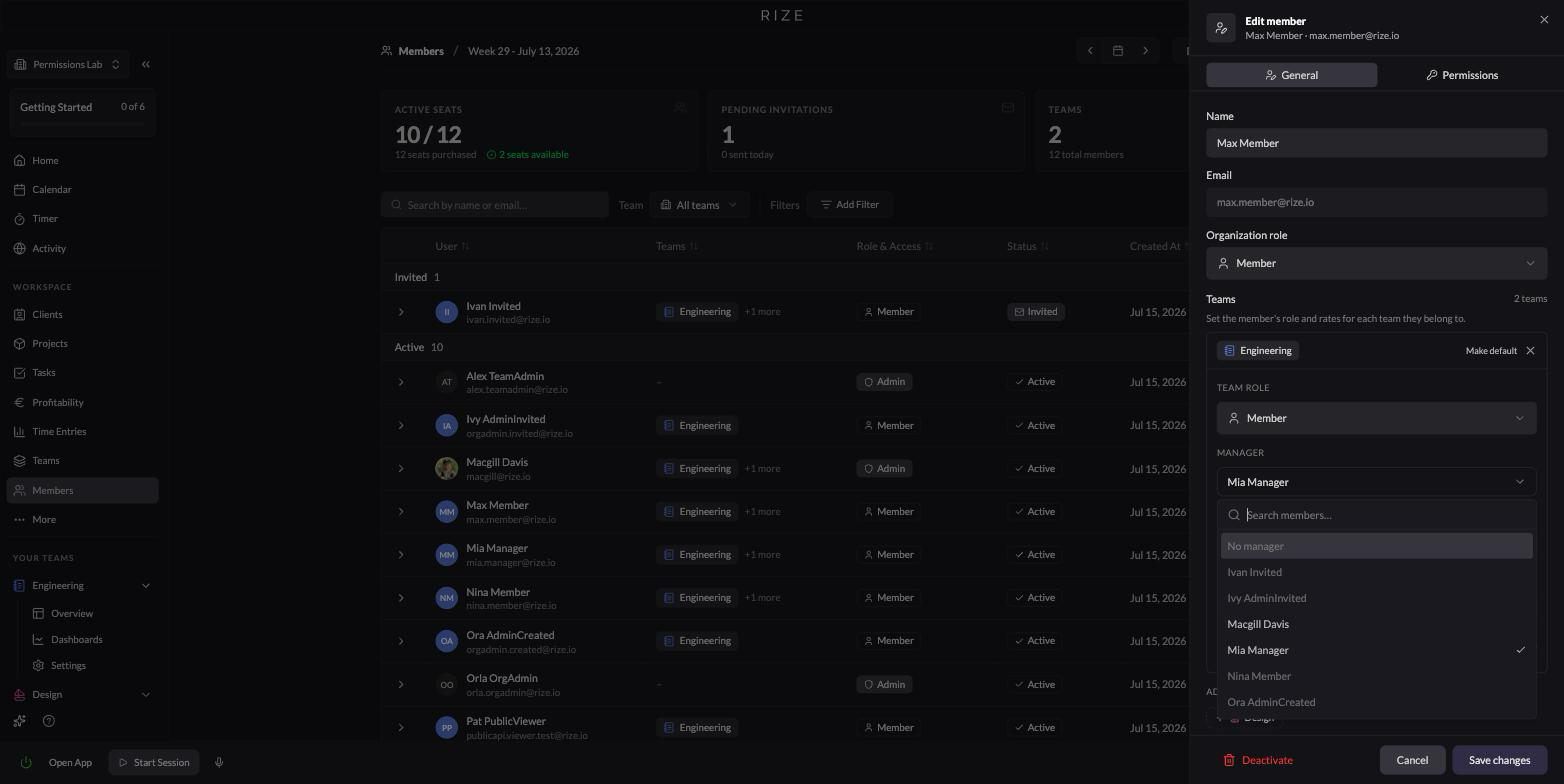
Each member can be assigned a manager on their team from the member edit sheet. Only team admins and managers on that team are eligible, and you can't assign someone as their own manager. The manager is shown on the team assignment card in the General tab.
Permission grants
Two optional grants layer on top of any role. They are toggled per person in the Permissions tab of the member edit sheet.
Finance permission (organization-wide)
Grants visibility into bill rates, cost rates, and profitability across the entire organization — every team, even teams the person isn't on. Use it for a finance or operations person who needs the numbers without being an organization admin. It's read-only: it doesn't grant member management, settings, or time editing. Organization admins always have finance visibility.
Resourcing permission (per team)
Granted per team, this unlocks capacity planning and lets the person view and edit anyone's time on that team, whatever their team role. Team admins have it implicitly; toggle it on for a member or manager who runs delivery operations for the team.
Role capability matrix
| Capability | Org admin | Team admin | Manager | Member | Viewer |
|---|---|---|---|---|---|
| Track their own time | Yes | Yes | Yes | Yes | No |
| View others' time on the team | All teams | Whole team | Direct reports | No | Whole team (read-only) |
| Edit others' time on the team | All teams | Whole team | Direct reports | No | No |
| Add, edit, and remove team members | All teams | Their team | No | No | No |
| Edit team settings | All teams | Their team | No | No | No |
| Set bill and cost rates | Yes | Their team | No | No | No |
| View rates and profitability | Yes | Their team | No | No | No |
| Capacity planning (resourcing) | Yes | Their team | With resourcing grant | With resourcing grant | No |
| Manage organization billing and seats | Yes | No | No | No | No |
The finance grant adds "view rates and profitability" across all teams to any role. The resourcing grant adds capacity planning plus view/edit of everyone's time on the granted team.
On the organization Members page, bill and cost rates are visible only to organization admins and members with the finance permission. Team admins see rates inside their own team's reports, but not on the Members page.
Who can do what with time entries
- Your own entries — You can always edit your own time. You can also move your own entry to another team you track time on (within the same organization).
- Someone else's entries — Editing another person's time requires management access to their time on that team: team admin, their manager, a resourcing grantee, or an org admin.
- Logging time for someone else — Same rule: you can create a time entry for another member of a team where you can edit others' time.
- Reassigning an entry to a different member or team — Only organization admins can change who owns a time entry or move it to a team the owner selects for someone else, and entries can never move between organizations.
Managing members
Roles, managers, rates, and grants are all set from the Members page. See Managing Members.
Rates and profitability
Learn how rates feed profitability in Profitability Overview.
Member agent and tracking settings
Workspace admins and admins of a member's active team can edit their Agent and Tracking tabs from Members → Edit member. Managers and viewers do not receive this access from those roles alone.
These tabs configure the member's account-level agent preferences, time zone, and automatic tracking schedule. See Managing Members for the available settings.