Resourcing and Utilization
Plan capacity against time that was actually tracked
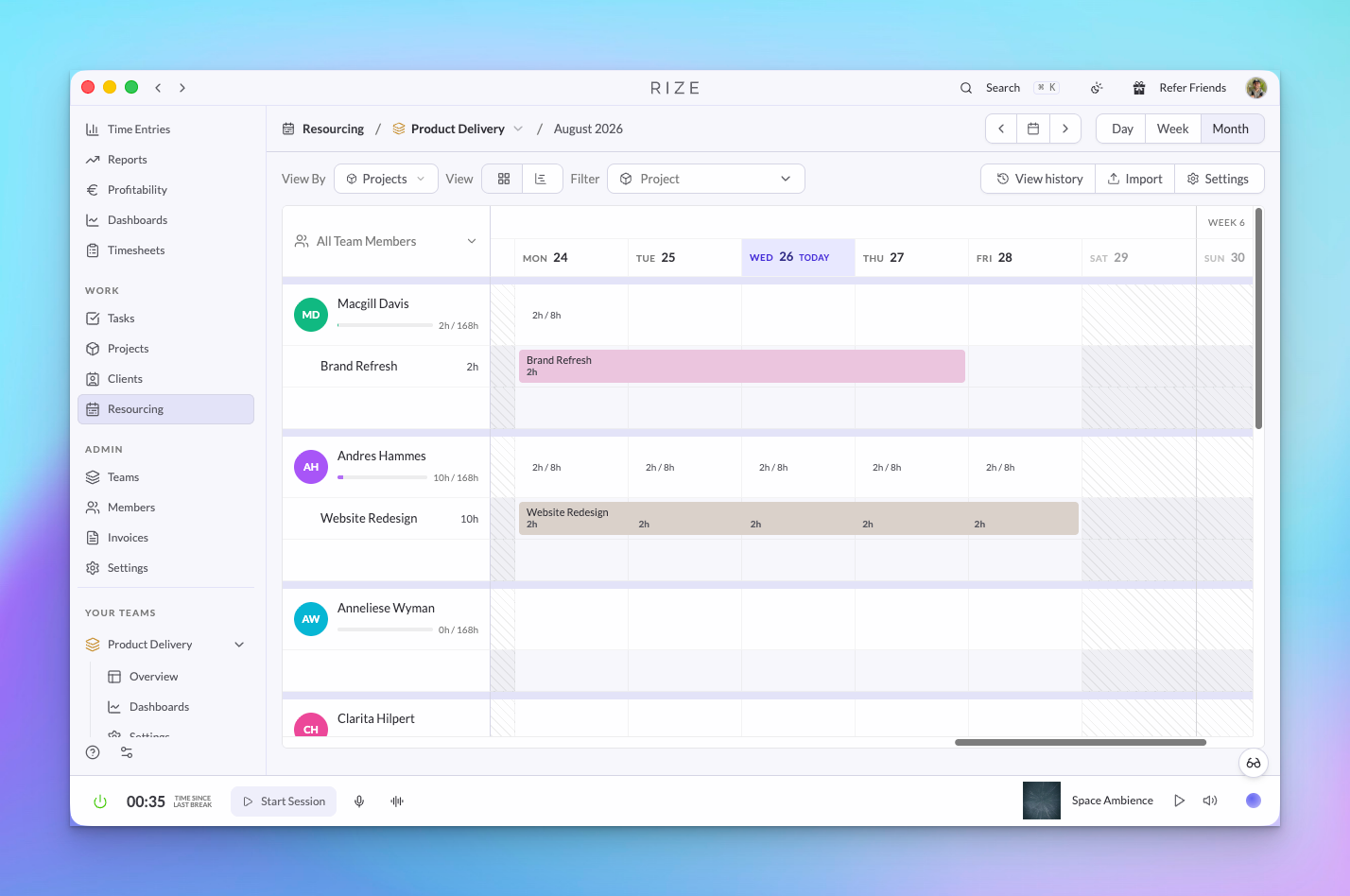
Resourcing puts scheduled work and tracked work on the same grid. Schedule assignments per member by day and week, define working days and holidays, and read utilization as scheduled hours against what Rize captured automatically.
Who can use it
Organization admins and team admins have resourcing on every team they administer. Give anyone else the Resourcing grant on a team from the Permissions tab of the member edit sheet; it unlocks planning and lets that person view and edit everyone's time on that team. See Roles and Permissions.
Schedule assignments
Open Resourcing for a team or the organization
The team page shows one team. The organization page under your org shows every team with a team selector and the same client, project, and task filters.
Add an assignment
Pick a member, a client, project, or task, hours per day, and a date range. Drag across days on a member's lane to select the range first if that is faster.
Adjust as the plan changes
Edit an assignment in place, resize its range, assign PTO, or clear a period. Every change is recorded in planning history.
Set working days and holidays
Planning settings define the working week, public holidays, and company days off, so capacity reflects days people are actually available.
Read utilization
Allocation bars show scheduled hours and tracked hours side by side per client and project. Switch the metric between scheduled and tracked to compare the plan with what was delivered, and watch for the budget warning when a plan exceeds a project's budget.
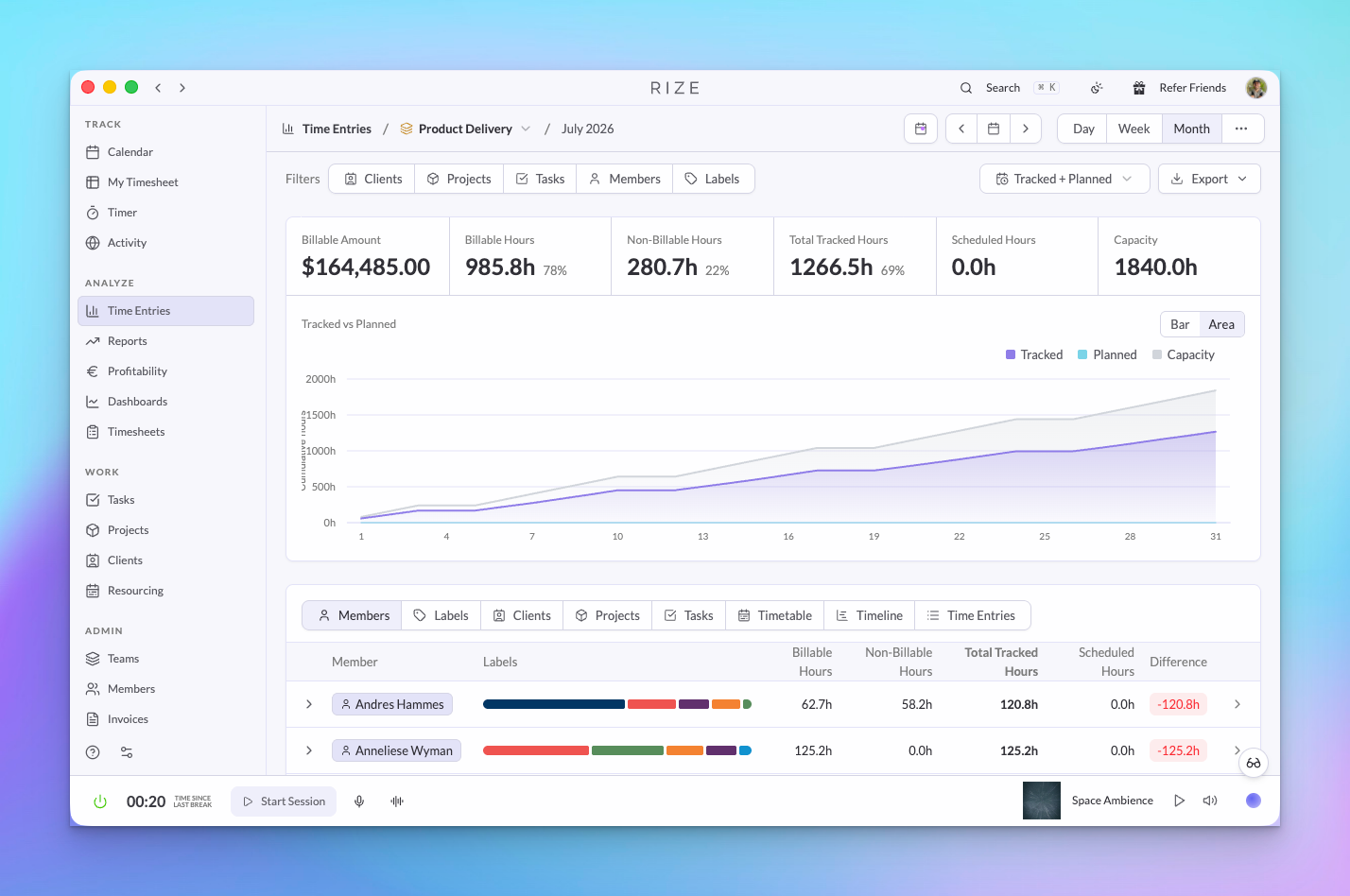
The Time Entries report has a Tracked + Planned view that charts tracked hours against planned hours and capacity for the period, with scheduled hours and the difference per member. The same capacity signals appear per member on Team Timesheets, so the plan is visible where time is reviewed.
Import a plan from CSV
Bring an existing schedule in from a spreadsheet or another planning tool. Open Import on the Resourcing page, upload a CSV, preview how each row maps to members and projects, then commit the batch. Rows that do not match an active team member are flagged before anything is written.
The same import is available in the public API as the create_planned_time_allocations mutation.
"Who is over capacity next week?" and "How does Acme's scheduled time compare to tracked this month?" both work in the Rize Agent. External agents can read allocation through MCP with get_team_time_allocation and get_workspace_time_allocation.