The Focus Page
One page for every session
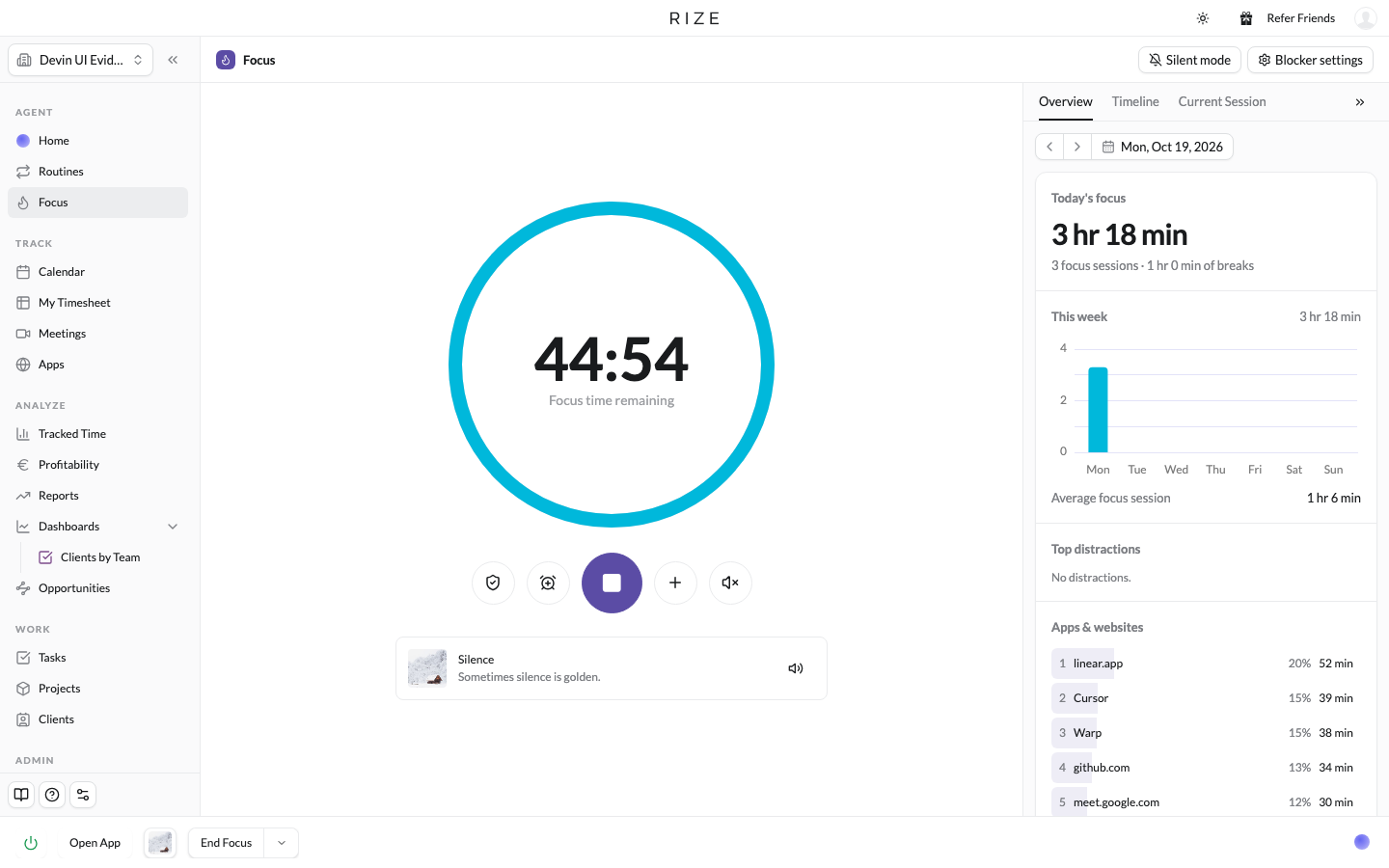
Focus replaces the Timer tab. It puts the session timer front and center, keeps the session controls and the Distraction Blocker under it, and moves your focus stats, timeline, and current session into a sidebar you can collapse. Silent mode pauses all of it when you want Rize to track quietly.
Where it lives
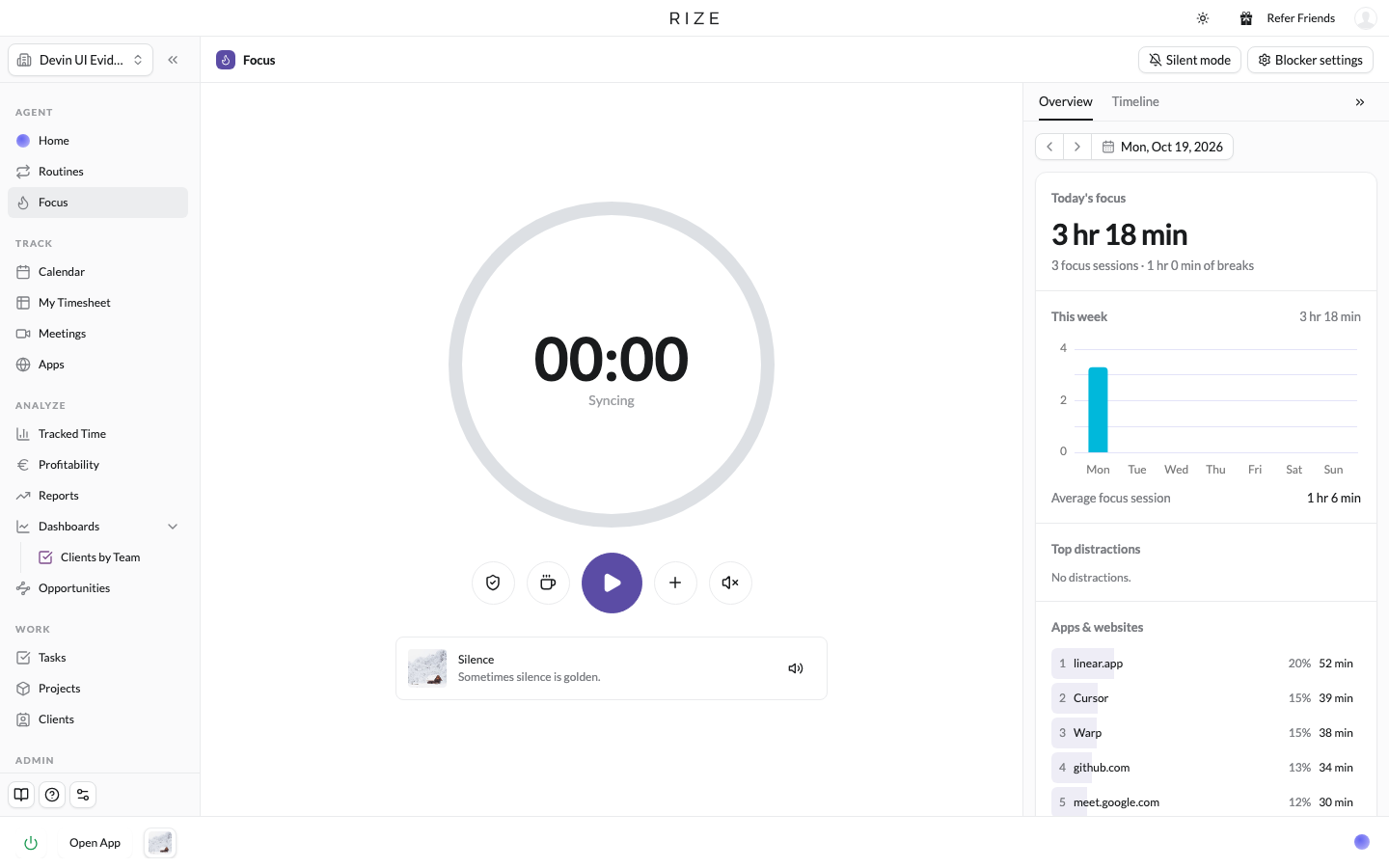
Open Focus under the Agent group in the sidebar. The page has three parts: the session timer with its controls, the title row with Silent mode and Blocker settings, and the sidebar on the right.
Start a session
Click Start focus
The play button under the timer opens the Start Focus dialog. The + button next to it opens a menu with Start Focus, Start Meeting, and Start Break.
Set the duration and goal
Pick a duration (25 to 45 minutes works for most people) and, optionally, a goal for the session. Music can be chosen here too.
Choose Auto-detect or Manual
Auto-detect, the default, lets Rize work out what you are working on from your activity. Manual shows task, project, and client pickers so you can set them yourself, and lets you switch teams. Rize remembers which tab you used last on this device.
Start
The timer turns the session's color and starts counting down. The sidebar's Current Session tab appears while a session is running.
While a session runs, the play button becomes End session, and the break button becomes Extend session with +5, +10, +15, and +30 minute options. Session Extension Duration in Settings sets how much a notification's extend adds.
Why Auto-detect
Rize already knows which apps, websites, and documents you are in. With Auto-detect on, the session's time entry is tagged from that activity, the same way background tracking tags the rest of your day, so a session does not need a task picked up front. Use Manual when the work is not visible in your activity, for example a call or reading, or when you want to force a specific project.
Distraction Blocker
The shield icon at the left of the session controls toggles the Distraction Blocker. Hover it to see whether blocking is enabled or disabled. Blocker settings in the title row opens the full configuration page for which apps and sites are blocked and when. See Distraction Blocker.
Upcoming sessions
When a session is planned, a small card appears at the top right of the page with Up next, the session's title and duration, and a Start now button. Start now opens any video-conference link on the session and starts it. Dismiss the card with its X if you are not ready.
The sidebar
The sidebar has three tabs and a day picker. Collapse it with the chevrons beside the tabs; the collapsed rail keeps the active tab's name so you can reopen it. Rize remembers whether it was open on this device.
| Tab | What it shows |
|---|---|
| Overview | Today's focus: total focus time, number of sessions, and break time. This week: a day-by-day histogram, the weekly total, and your average session length. Then Top distractions and Apps & websites for the day. |
| Timeline | A compact timeline of the day's sessions and meetings. |
| Current Session | Only while a session runs: the live session, with the task, project, and client Rize has attached. During a break it shows break suggestions. |
The day picker moves Overview and Timeline to any past day. Current Session always follows the live session.
Fix a distraction from the sidebar
Click an app or website under Top distractions or Apps & websites to act on it without leaving the page: mark it as not a distraction, or edit the tracking rule behind it. The rule updates everywhere Rize uses it, so the change carries into the Distraction Blocker and future focus detection.
Silent mode
Silent mode is for the days you want Rize to track in the background and nothing else.
Turn it on
Click Silent mode in the Focus title row, or open Settings > Notifications and switch Silent Mode on. New accounts are offered it during onboarding.
What pauses
Focus sessions, break reminders, the Distraction Blocker, coaching notifications, and automatic focus and break detection. Planned focus and break sessions do not start. The session controls and the Productivity pages hide while it is on.
What keeps working
Time tracking, work hours, meeting notifications, and planned meetings. Your tracked time and timeline are unchanged.
Turn it off
Click Turn off Silent Mode on the Focus page or switch it off in Settings. Your focus settings are stored while it is on, so turning it off restores them exactly.
Switching Silent mode on during a running session does not end the session. The Focus page keeps showing it until it finishes, and nothing new starts afterwards.
The bottom bar
The bottom bar across the rest of the app has a row of compact cards: the tracking power button, a timer card that opens Focus, the music player, the session controls, and a pill for the next planned session. Two settings under Settings > Focus control what shows on this device:
- Show Music Player in Bottom Bar, on by default.
- Show Start Session in Bottom Bar, off by default. Turning it on also shows the upcoming-session pill.
In the browser, the timer card is replaced by Open App, because tracking and sessions run from the desktop app.