Labels
A label is a name and AI prompt attached to a time entry so you can describe what the work was about.
How labels work
Rize applies labels to time entries, not directly to apps or websites. The AI reads the time entry summary, window titles, and project context before it applies a label.
For example, time on YouTube can become Learning when the summary shows a tutorial, or Entertainment when the summary shows Shorts. The app name alone does not decide the label.
Labels stay with the time entry alongside the client, project, and task. Reports, the AI agent, MCP clients, and timesheet review can use the same label.
View and edit labels
Open Settings > Labels to view the labels available to your teams. The page says, Manage labels for each team in your workspace. Labels help organize and classify time entries across your teams. Each label has a name, a short description, an Auto-apply switch, and an AI Prompt (shown when Auto-apply is on).
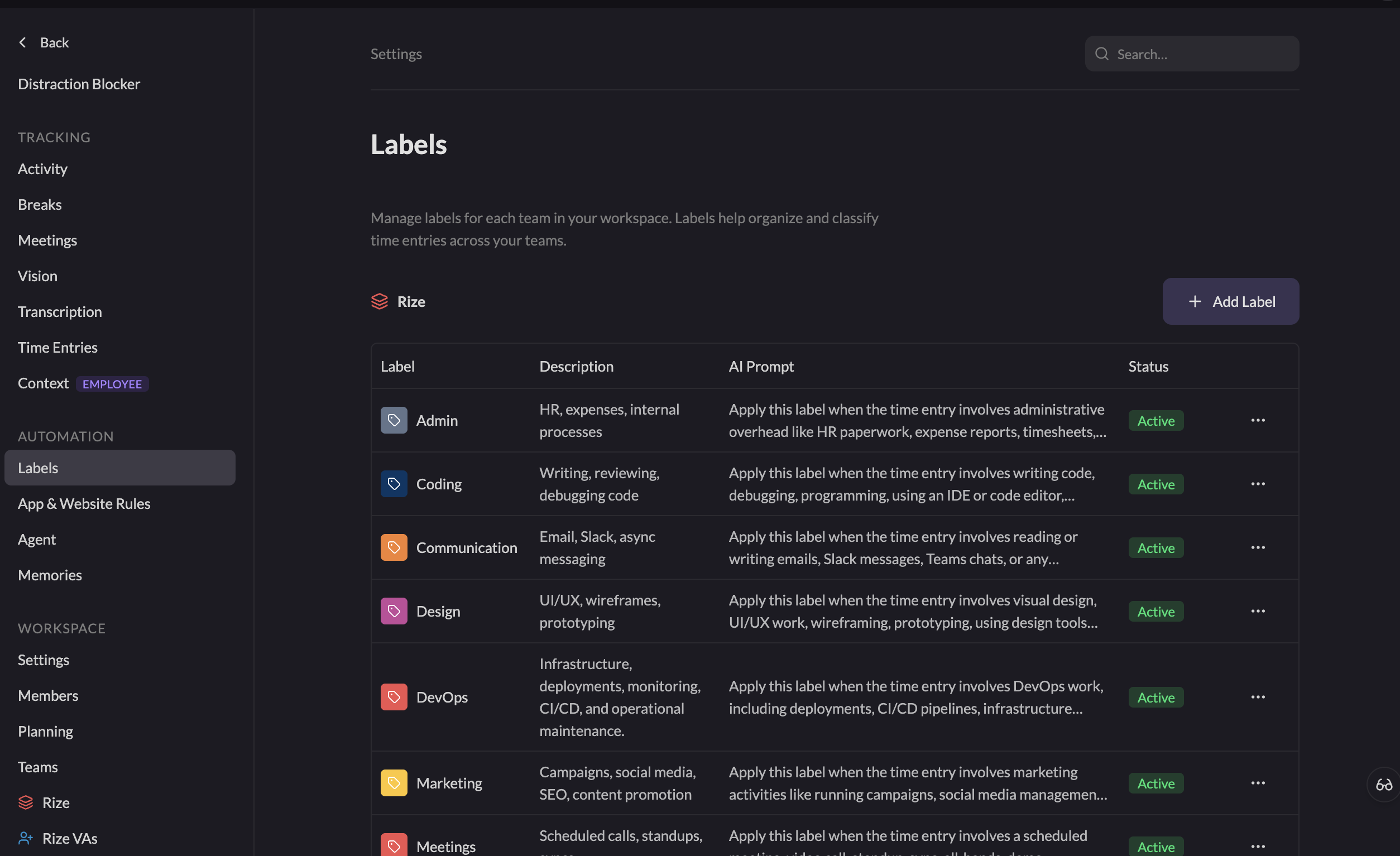
The prompt is plain-language guidance for automatic classification. For example, you can tell Rize to apply a label when an entry involves writing code for a specific product area.
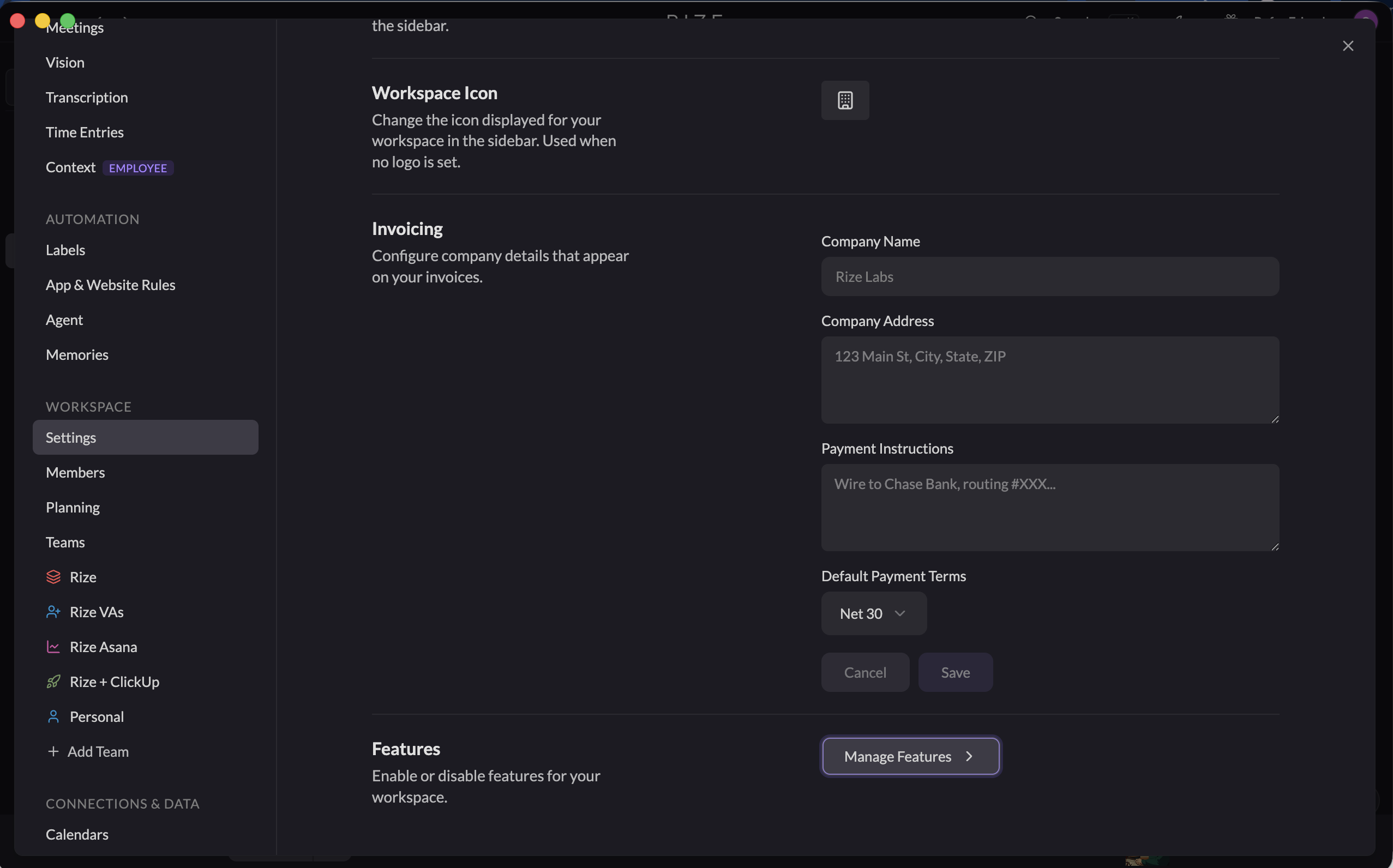
Team admins manage labels from each team's settings page. If Labels are not enabled for your workspace, a workspace admin can turn on Labels under Settings > Workspace > Settings > Manage Features.
Count a label toward work hours
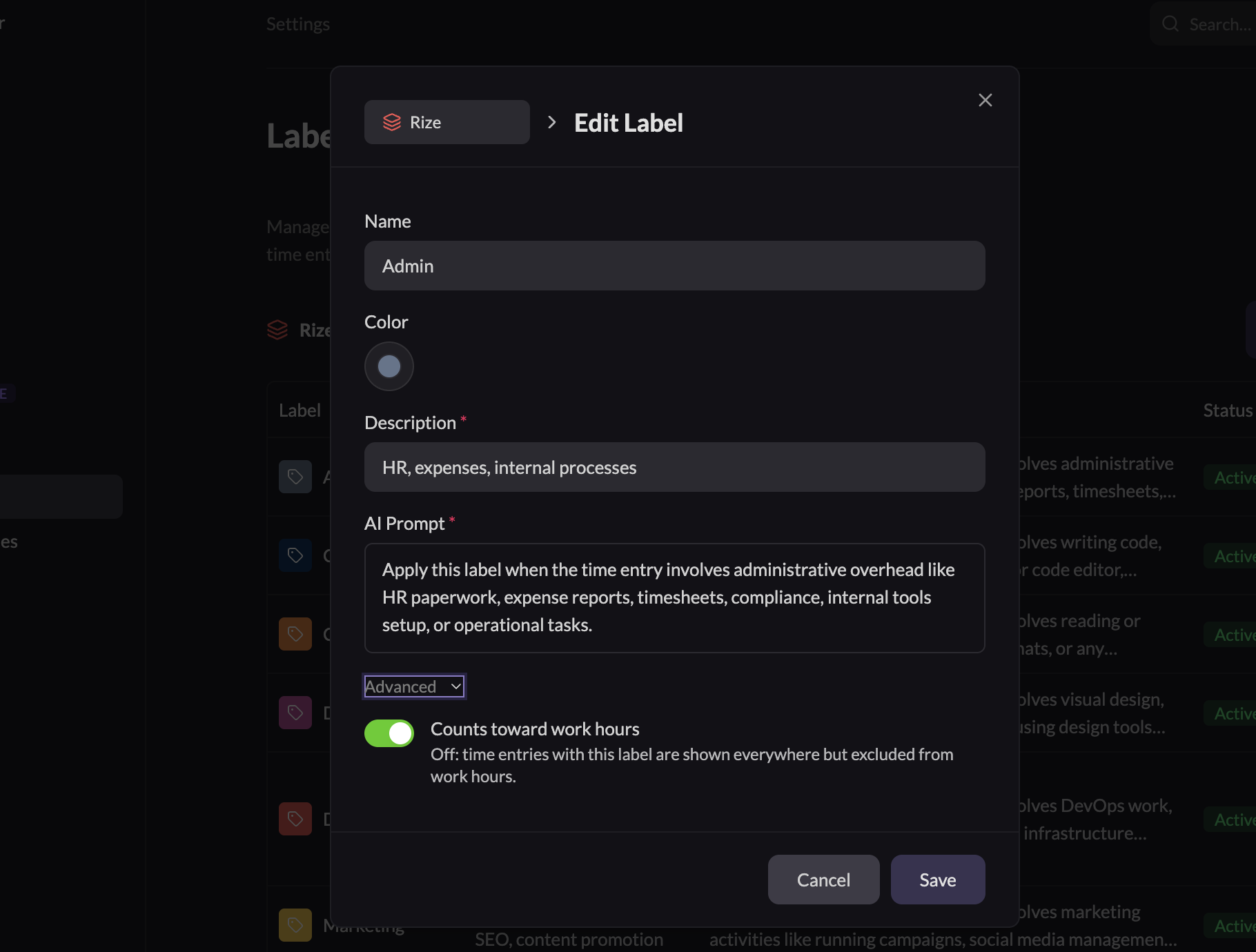
Open a label and expand Advanced. The Counts toward work hours switch controls whether time entries with that label count toward Work Hours.
When the switch is off, the entries remain visible everywhere but are excluded from Work Hours. The UI describes this as: Off: time entries with this label are shown everywhere but excluded from work hours. This setting affects the label, not the underlying tracked time.
Change a label on a time entry
You can apply or change a label manually from the time entry review view. Choose the label in the label control, then save the entry.
Manual changes update that time entry. The label's AI prompt continues to control automatic classification for future entries.