App & Website Rules
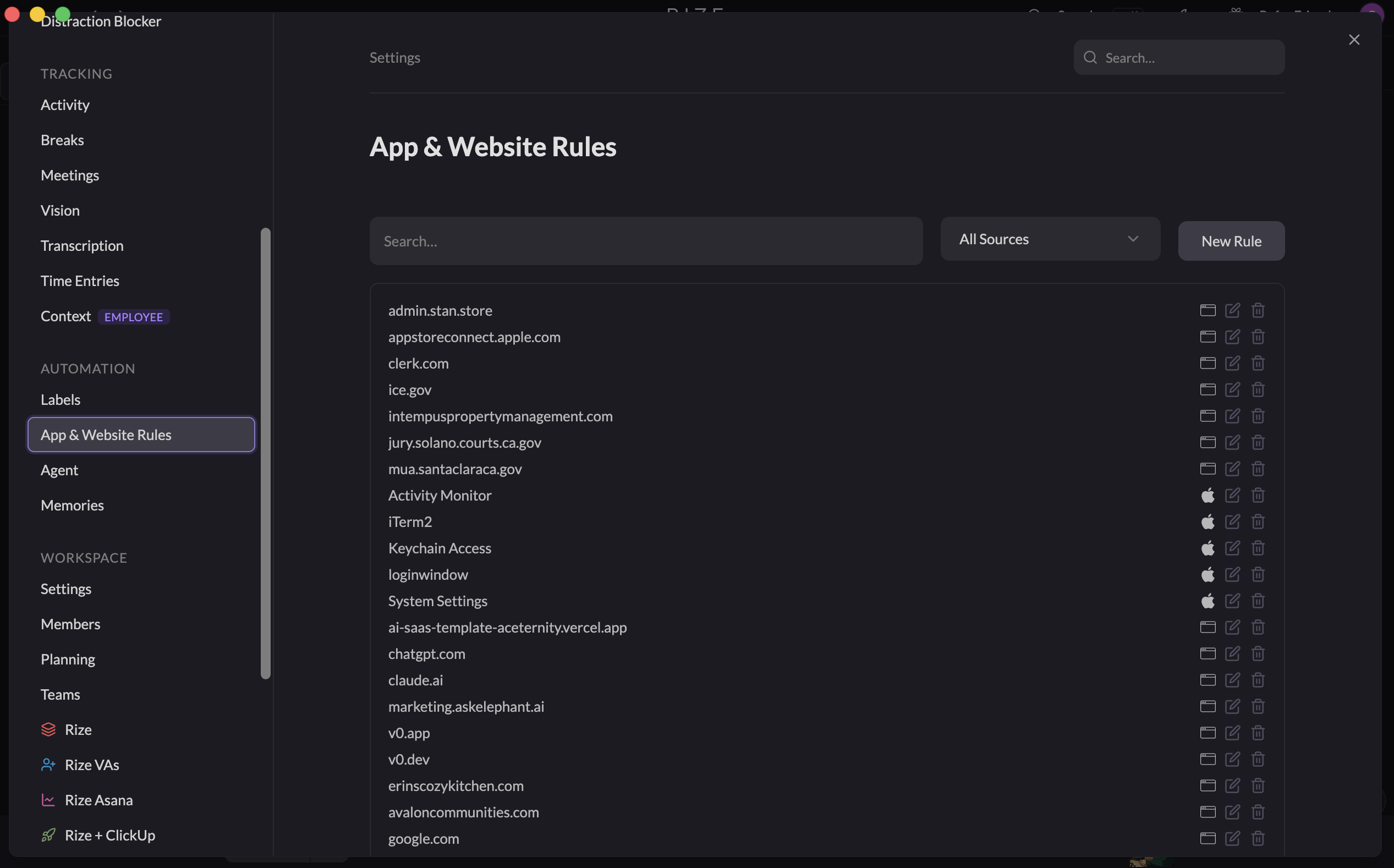
An App & Website Rule tells Rize how to treat one app, website, URL, or window-title pattern.
Choose how Rize treats an app or website
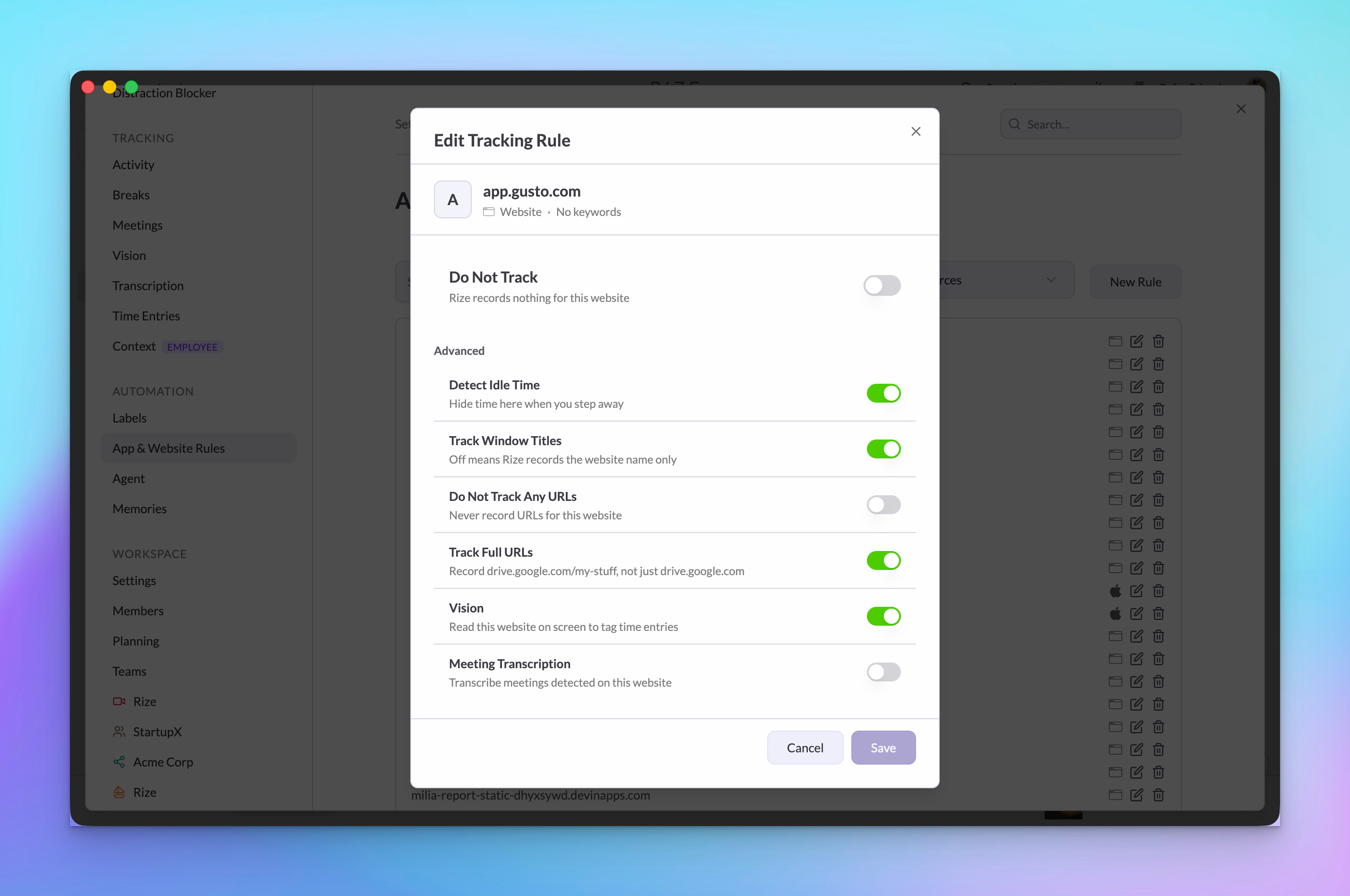
Open a rule to see its settings. Each one is a switch or checkbox:
- Do Not Track: Rize ignores this app or website entirely. When it is on, every other setting is hidden because nothing is recorded.
- Detect Idle Time (under Advanced): Hide time here when you step away. Turn it off when time in this app or website should stay tracked while you are inactive.
- Focus (under Sessions): Spending significant time in this app will start focus time. Time here counts toward focus time and can start a Focus Session.
- Meeting (under Sessions): Spending significant time in this app will start meetings automatically. Rize creates a Meeting Session once you spend 15 or more minutes here. A meeting app cannot also count as focus, so Focus is disabled while Meeting is on.
For a website, the descriptions say "on this website" instead of "in this app."
When you create a rule, the same settings appear.
Control blocking and tracked details
The Distraction Blocker group lets you block the app or website During Focus Sessions, During Breaks, or During Meetings, or turn on Always Block. Blocking is set on the rule for that app or website.
Under Advanced, Track Window Titles controls whether Rize records the active window title. Its description is Off means Rize records the app name only.
Website rules also include Do Not Track Any URLs and, when URL tracking is enabled, Track Full URLs. Full URL tracking records the path, such as drive.google.com/my-stuff, instead of only the domain.
An unknown app starts with Focus and Detect Idle Time on, and Meeting and Do Not Track off. It is not blocked by default. You can change those settings when you edit the rule.
Open a rule
You can open Settings > App & Website Rules to search, create, and edit rules. You can also click an app or website in the timeline activity dialog and open its rule there.
Manage lists
Rize gives you managed lists for common rule changes. Each list has an All view and a view for the rules currently in that list.
- Settings > Focus > Non-Focus Apps & Websites: All apps and websites count as focus time by default, except the ones listed here. Meetings and breaks are automatically excluded.
- Settings > Activity > Idle-Exempt Apps & Websites: Activity in these apps and websites keeps being tracked while you are inactive, so it never triggers an idle state.
- Settings > Distraction Blocker > Blocked Apps & Websites: Rize triggers the distraction blocker when you use these apps and websites during a focus session.
Use Manage on a list to open its dialog and turn a rule on or off.
The migration is gradual. If your workspace still shows the older Categories settings, it has not migrated yet. Those settings remain available until the migration reaches your workspace; see Categories (legacy).