Configuring the Distraction Blocker
Rize's Distraction Blocker settings allow you to customize when Rize should try to prevent you from being distracted by websites and applications during your work sessions.
Choosing the Distraction Blocker Type
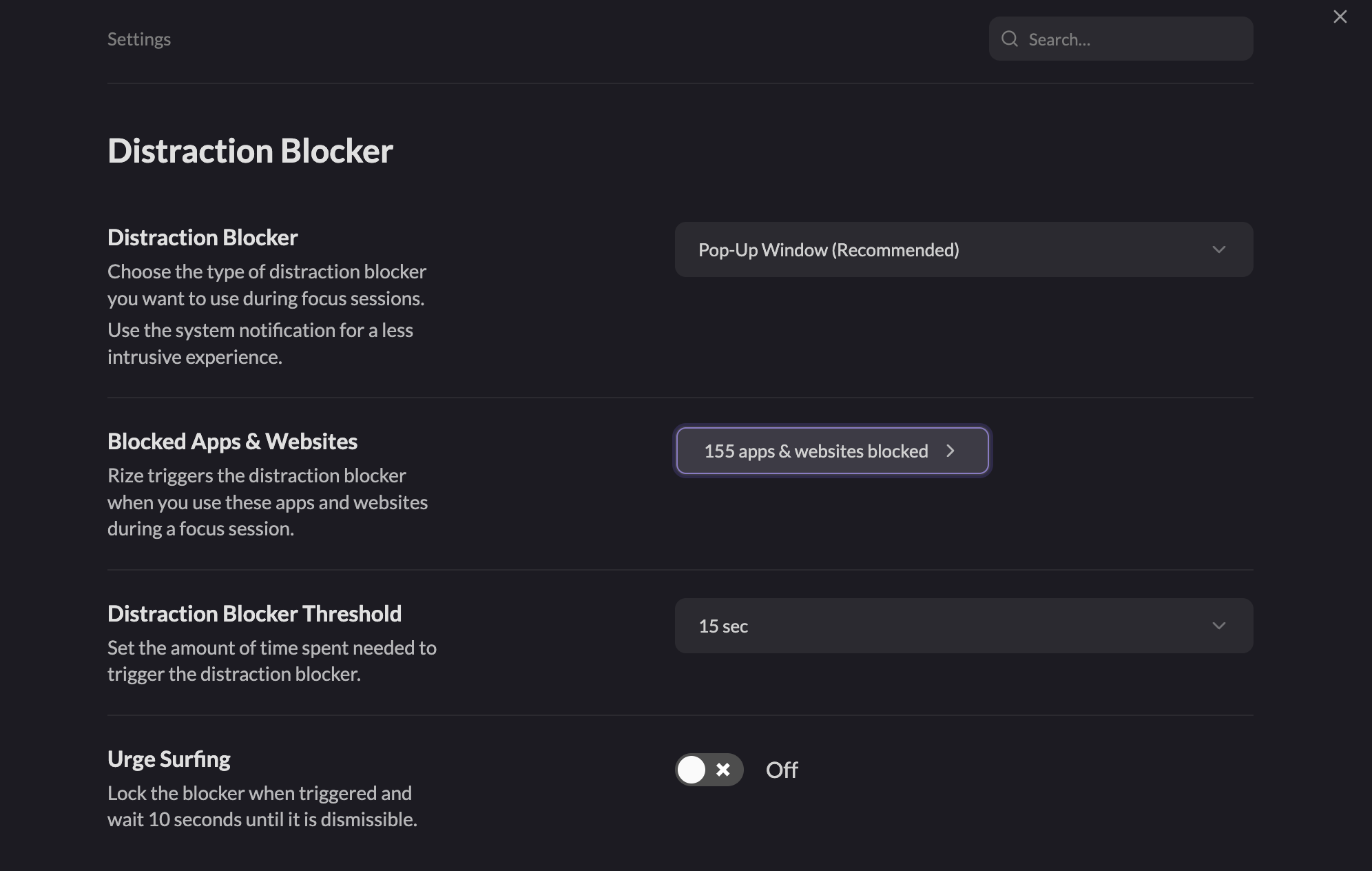
You can choose to display the Distraction Blocker as a pop-up window or system notification, or you can turn the blocker off from the Distraction Blocker setting in Settings > Distraction Blocker.
Choosing blocked apps and websites
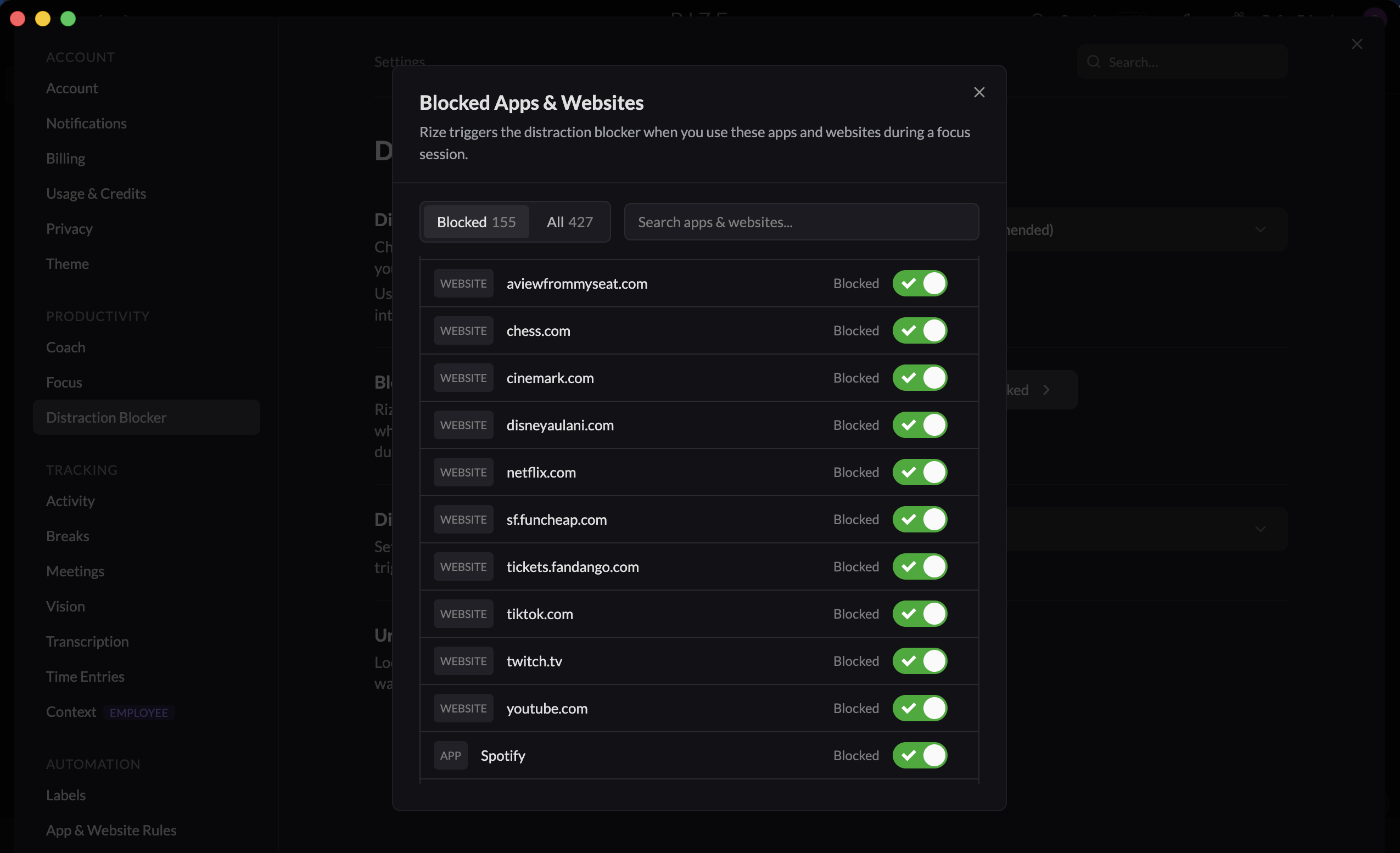
Open Settings > Distraction Blocker > Blocked Apps & Websites to choose the apps and websites that trigger the blocker during a focus session. The dialog has a Blocked view and an All view with a toggle on each rule.
Workspaces that have not migrated from categories yet choose Distraction Categories in Settings > Distraction Blocker instead, or use the Distraction Blocker Enabled setting in Settings > Categories.
Setting the Blocker Threshold
You can change the minimum time needed to trigger the Distraction Blocker from the Distraction Blocker Threshold setting in Settings > Distraction Blocker.
Enabling or Disabling Urge Surfing
You can enable or disable Urge Surfing from the Urge Surfing setting in Settings > Distraction Blocker. When the Urge Surfing setting is enabled, you cannot dismiss the Distraction Blocker window for 10 seconds.
Urge Surfing only applies to the Distraction Blocker pop-up window.
Configuring app and website rules
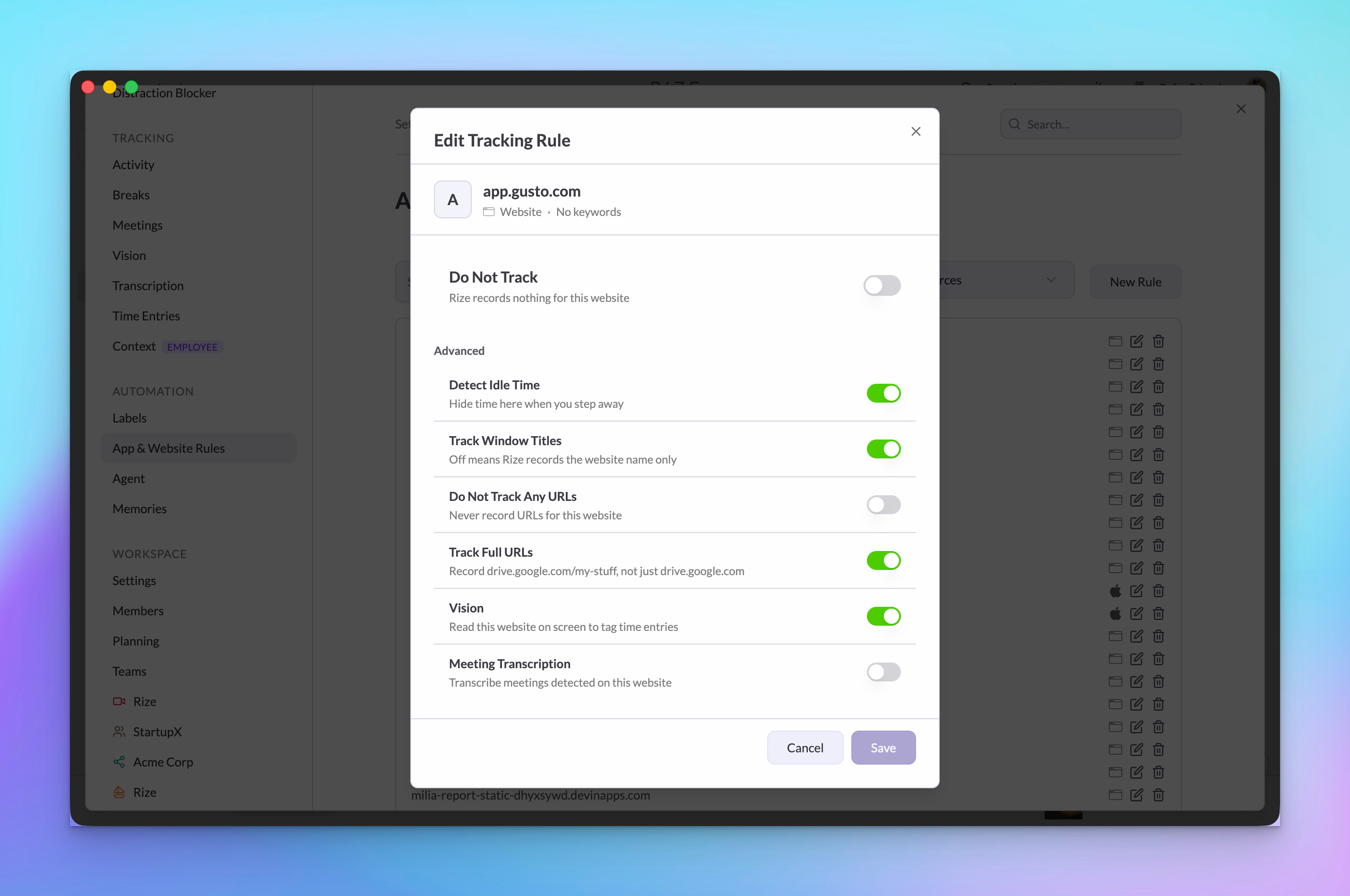
The Distraction Blocker can be customized for individual apps or websites from Settings > App & Website Rules.
- Click the "Edit" icon to edit the rule for the app or website.
- Enable or disable blocking with Always block, During Focus Sessions, During Breaks, or During Meetings.