Configuring Break Sessions
Rize's Break Session settings enable you to tailor breaks to your unique work habits, ensuring you take them in a way that best supports your workflow and prevents overwork.
Enabling or Disabling Automatic Break Detection
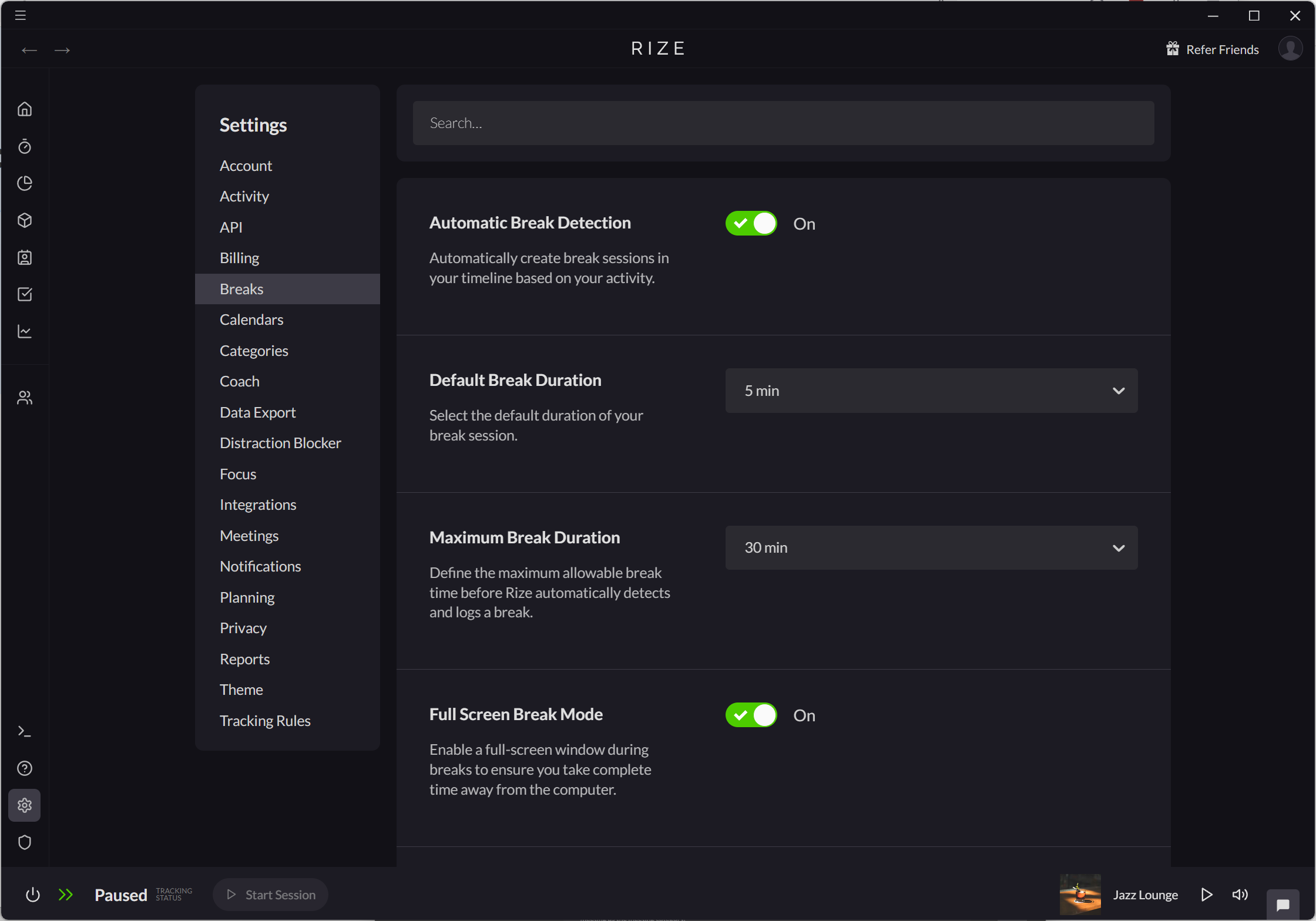
Automatic Break Detection can be enabled or disabled in Settings > Breaks. If Automatic Break Detection is enabled, Rize will automatically create break sessions in your timeline based on your activity.
Setting Break Session Duration
Defaults for Break Session duration can be changed in Settings > Breaks.
- Use Default Break Duration to set the default duration of your Break Sessions.
- Use Maximum Break Duration to change the maximum allowable break time before Rize automatically detects and logs a break.
Enabling or Disabling Full Screen Break Mode
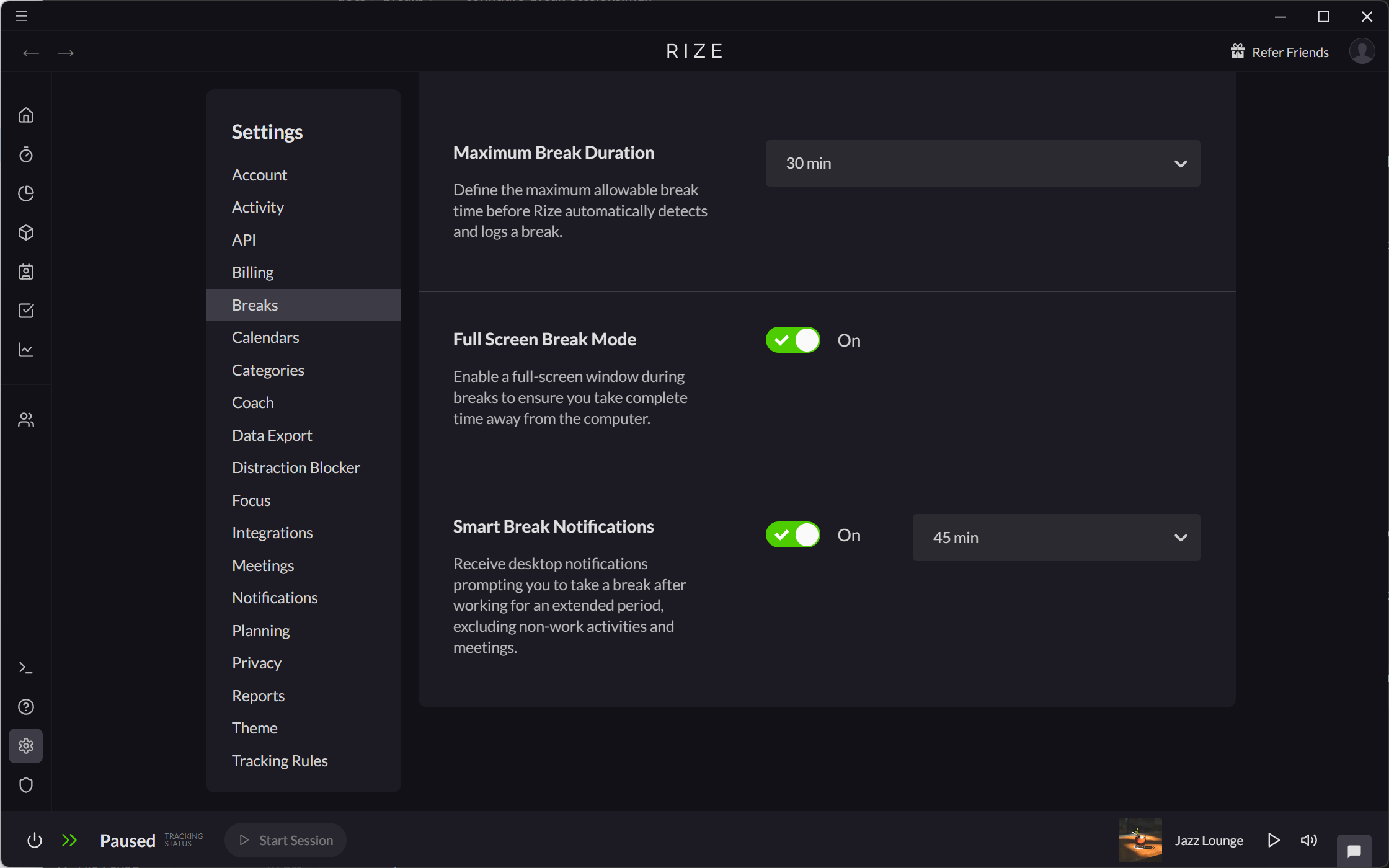
By default, Rize will create a full screen break when you manually start a Break to encourage you to spend time away from the computer.
Full Screen Break Mode can be enabled or disabled in Settings > Breaks.
Configuring idle detection
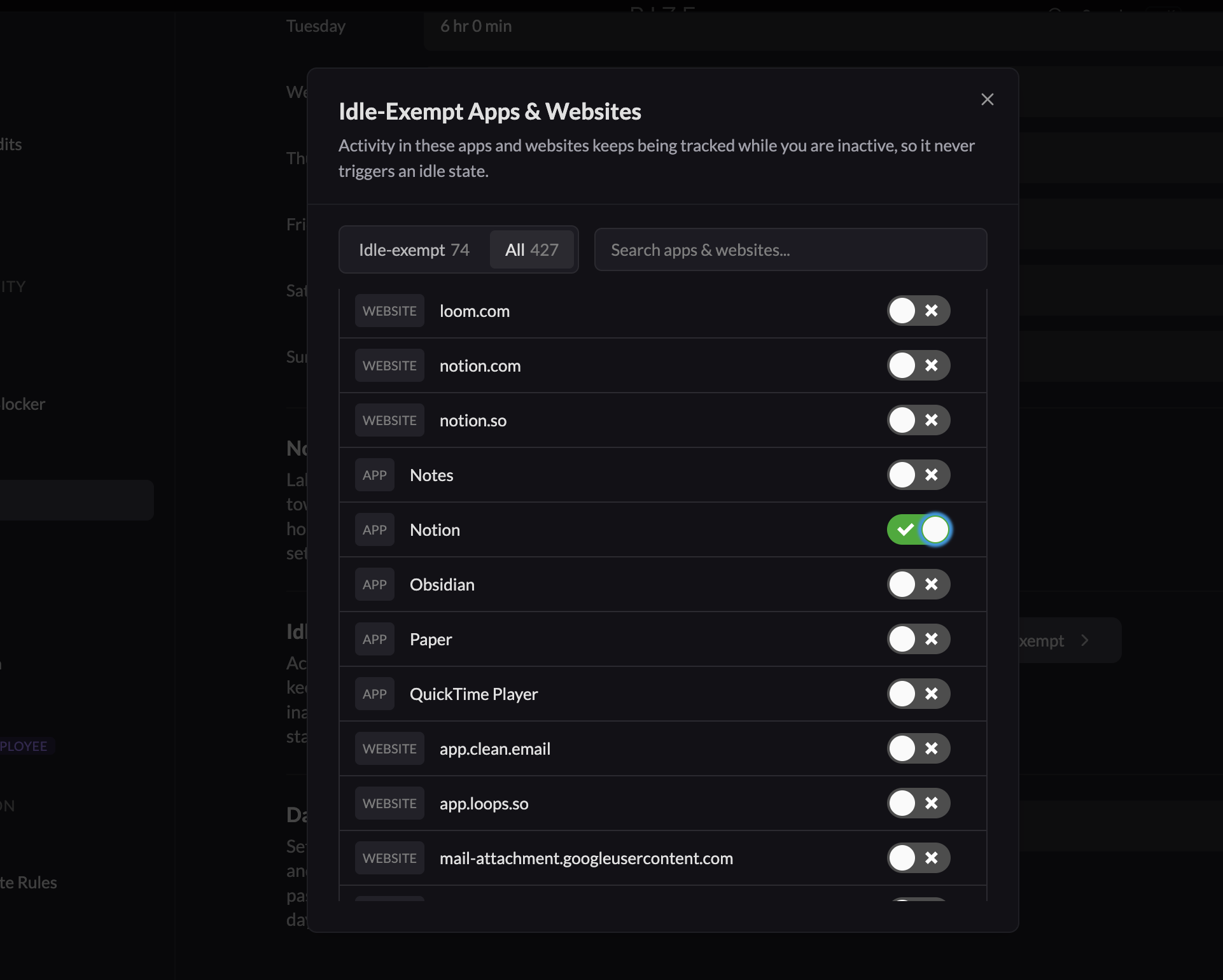
Each app and website rule has a Detect Idle Time setting. Turn it off when time in that app or website should remain tracked while you step away.
You can also manage these exceptions from Settings > Activity > Idle-Exempt Apps & Websites. Activity in an idle-exempt app or website keeps being tracked while you are inactive, so it never triggers an idle state.
Until your workspace migrates to App & Website Rules, Idle Detection is enabled or disabled per category in Settings > Categories. By default it is disabled for Entertainment, In Person Meetings, Messaging, Learning, Sales, Shopping, and Video Conferencing.